BloomBridge
Family guide
How to use BloomBridge with your child
This guide walks you through BloomBridge one screen at a time, with real pictures from the app. You do not need to read it all at once. Start with the trial and the Talk Board, and come back to the rest when you need it.
1. Start the trial
The trial lets you and your child use the Talk Board and the Activities for 48 hours on one phone or tablet. It is the same app the family pack uses.
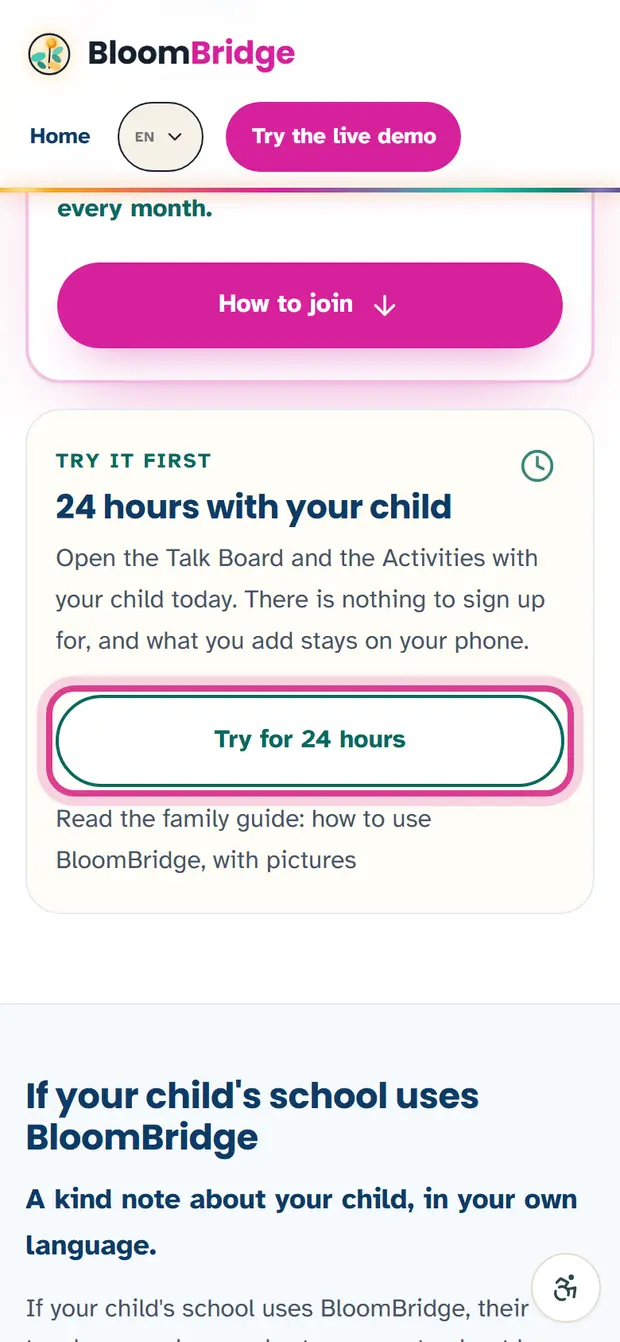
- Open family.getbloombridge.org on the phone your child will use.
- Tap “Try for 48 hours”.
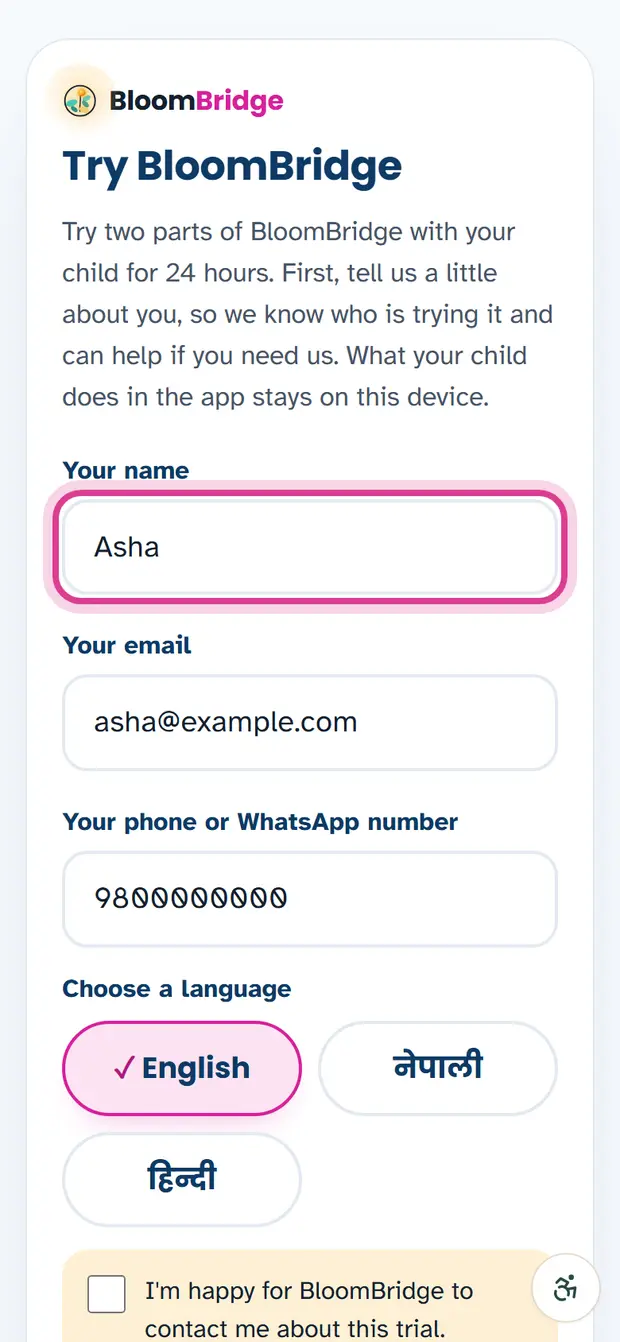
- Write your name, your email and your phone or WhatsApp number. We ask so we know who is trying BloomBridge and can help if something goes wrong. We ask nothing about your child.
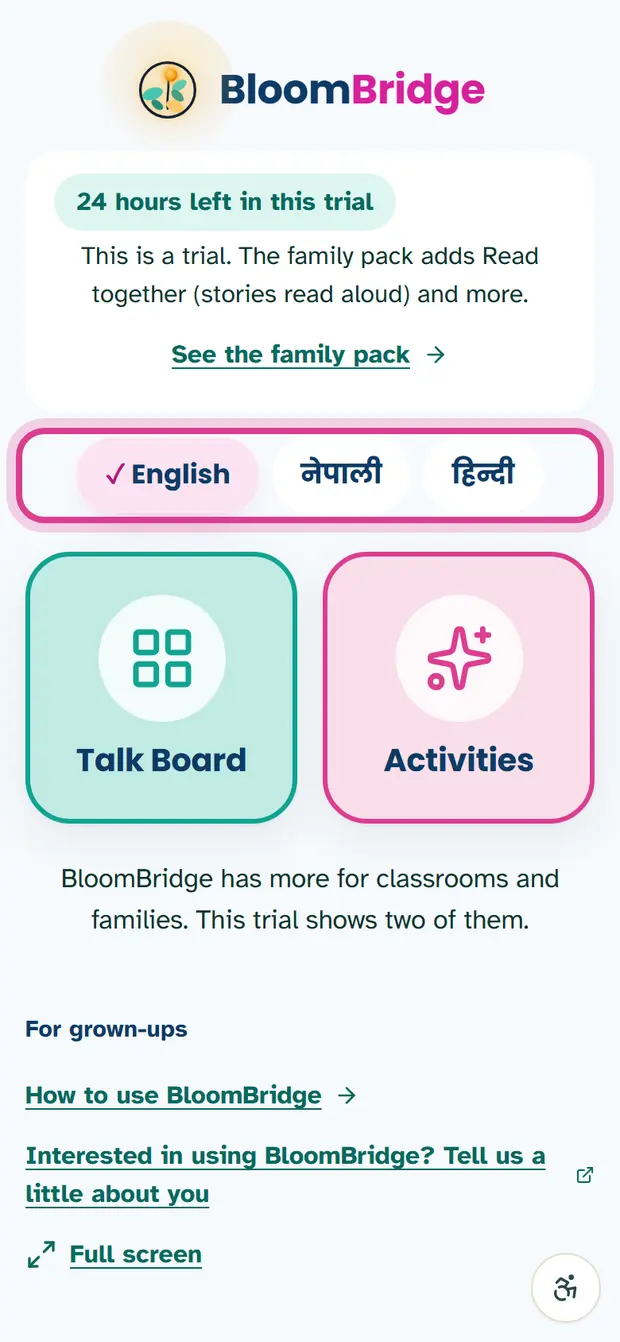
- Choose a language for the app: English, नेपाली or हिन्दी.
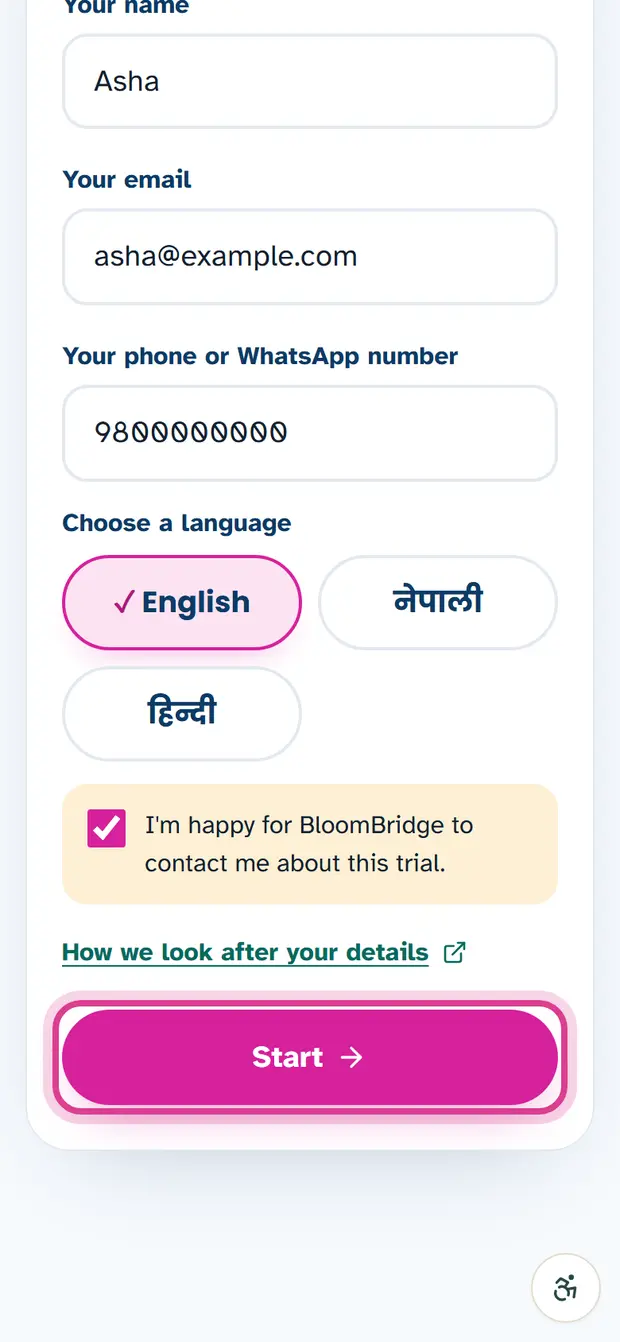
- Tick the box, then tap Start.
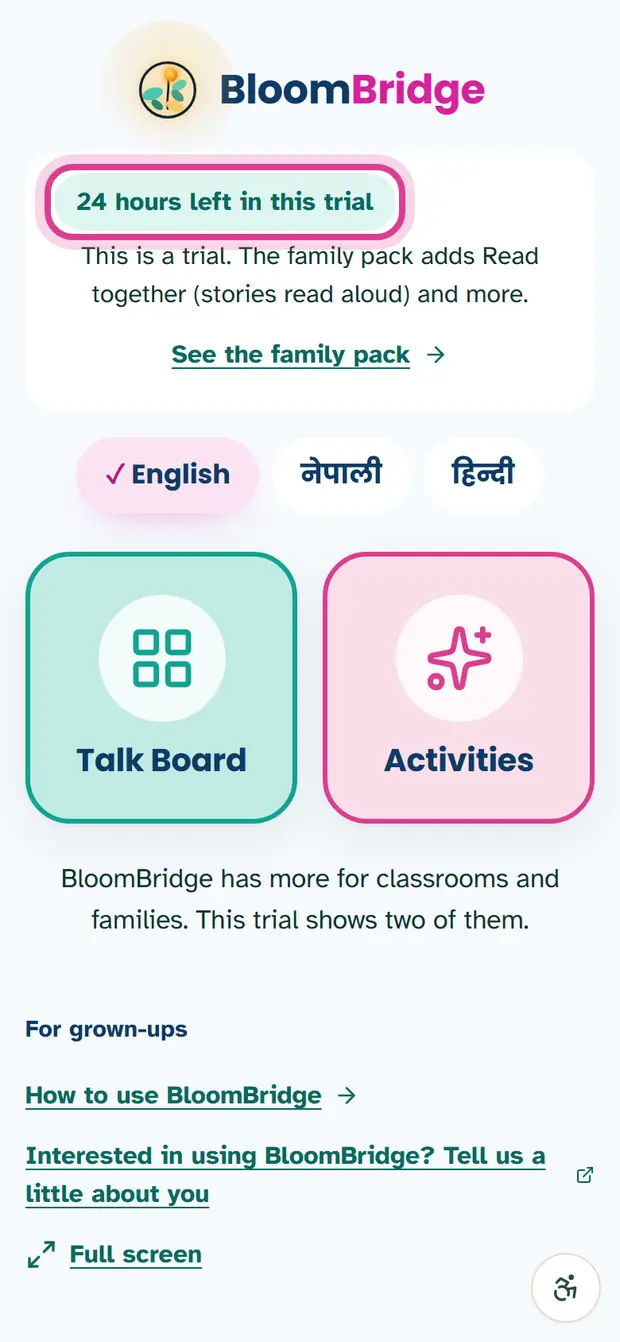
You now see the trial home. At the top it says how many hours are left. The two big tiles open the Talk Board and the Activities.
The 48 hours belong to this phone or tablet. Coming back later does not restart them, and what you add stays on this device.
2. The Talk Board
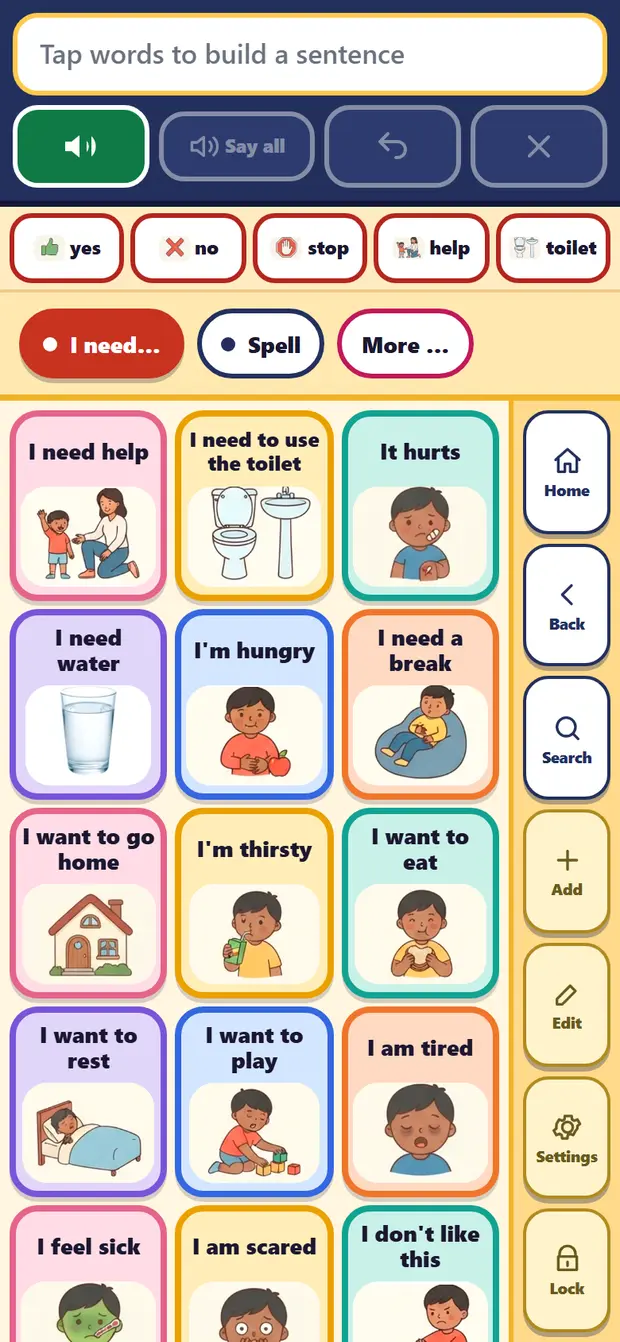
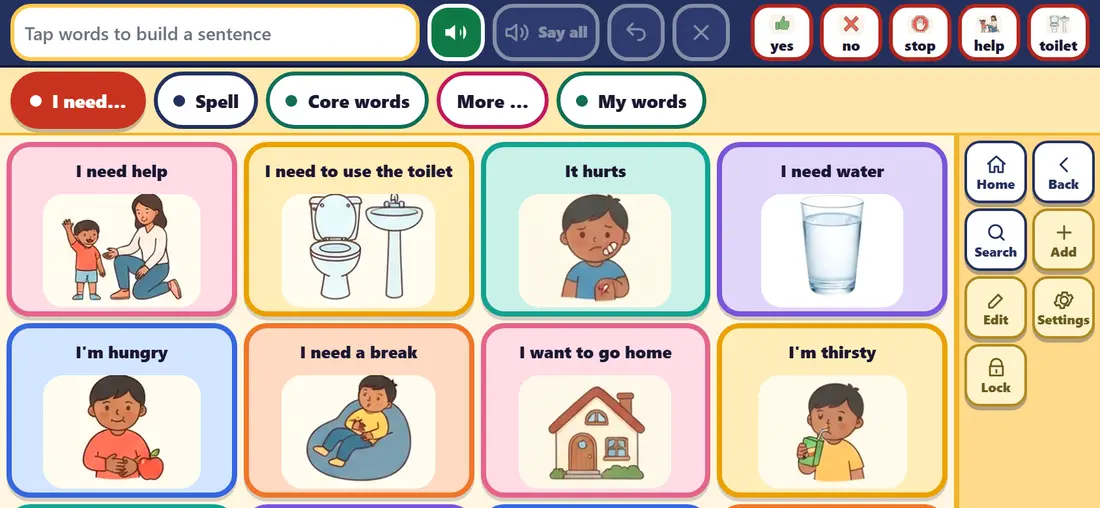
The Talk Board is your child’s voice. Each picture says its word out loud when it is tapped. Your child can say one thing with one tap, or put a few pictures together to make a sentence.
Build a sentence
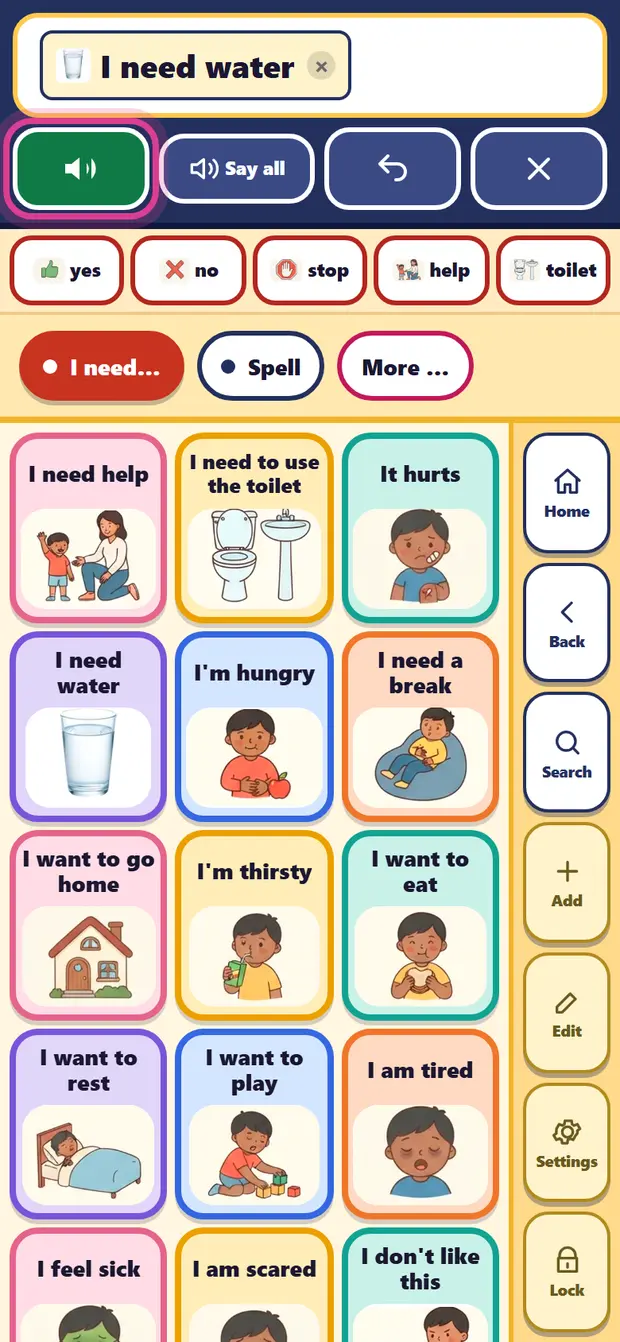
- Tap a picture. You hear it, and it goes into the sentence bar at the top.
- The green Speak button says the words that were added since the last time it was pressed.
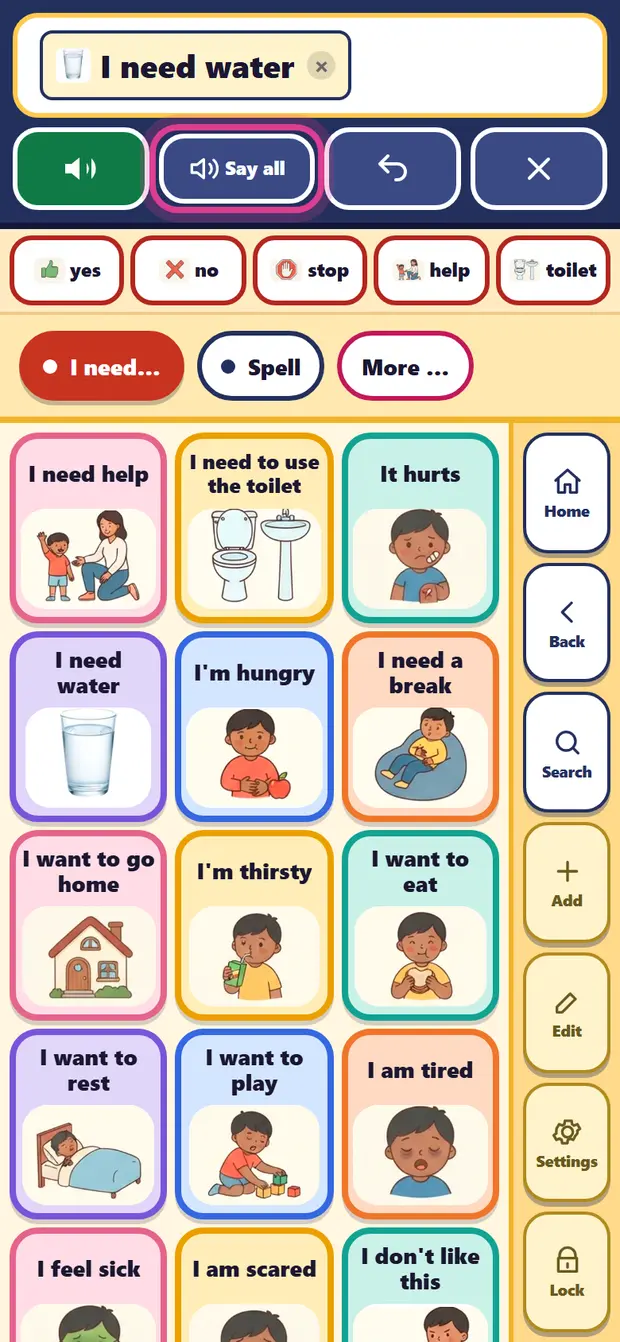
- “Say all” says the whole sentence from the start.
- The curved arrow (Undo) takes away the last word. The × (Clear) empties the sentence: tap it twice, so it is never cleared by accident.
The always-there row
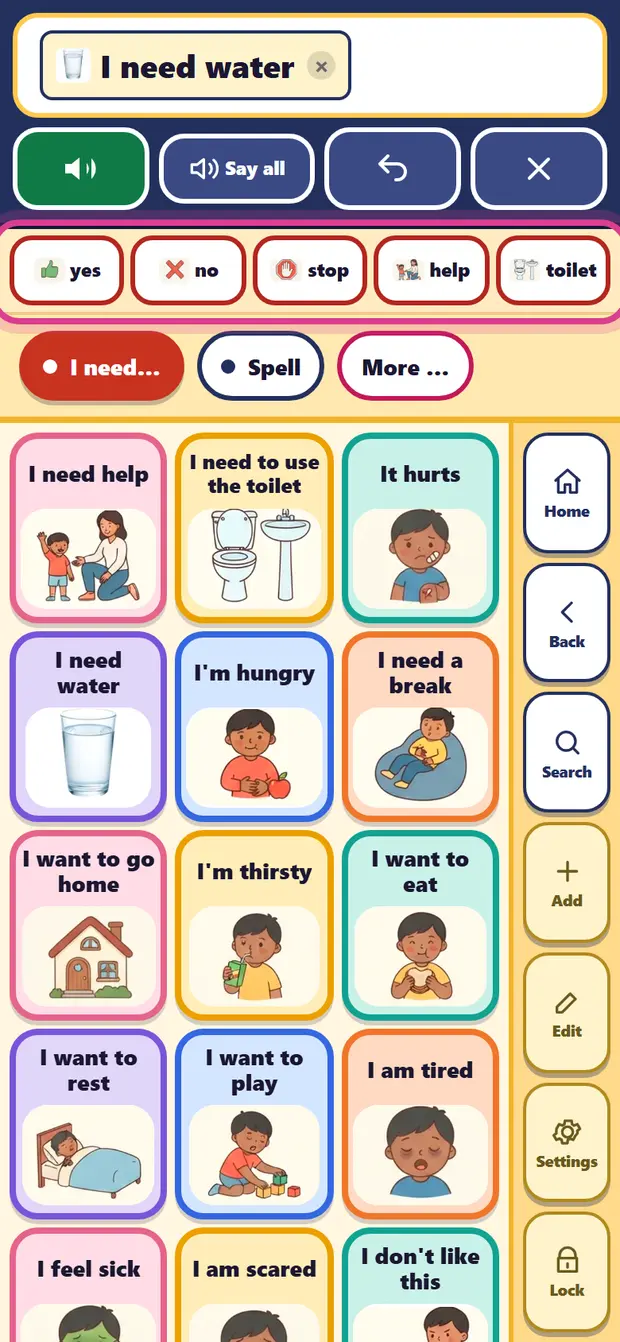
Five words stay on the screen whatever page your child is on: yes, no, stop, help and toilet. These are the words a child most often needs quickly.
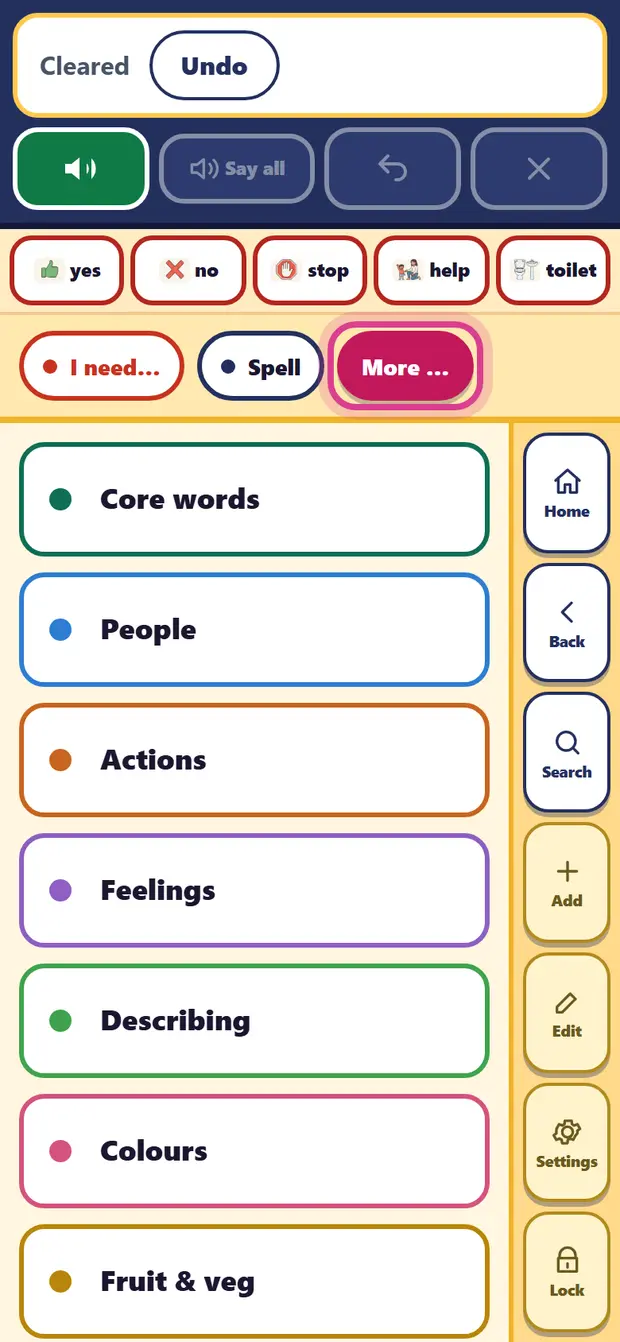
“I need…”, Spell and More
The board opens on “I need…”: whole phrases like “I need water” or “I need a break”, said with one tap. “Spell” opens a keyboard (see part 4). On a phone, “More …” opens the list of categories: core words, people, actions, feelings, food, drinks, places, animals and more. Tap a category to see its pictures.
Routines
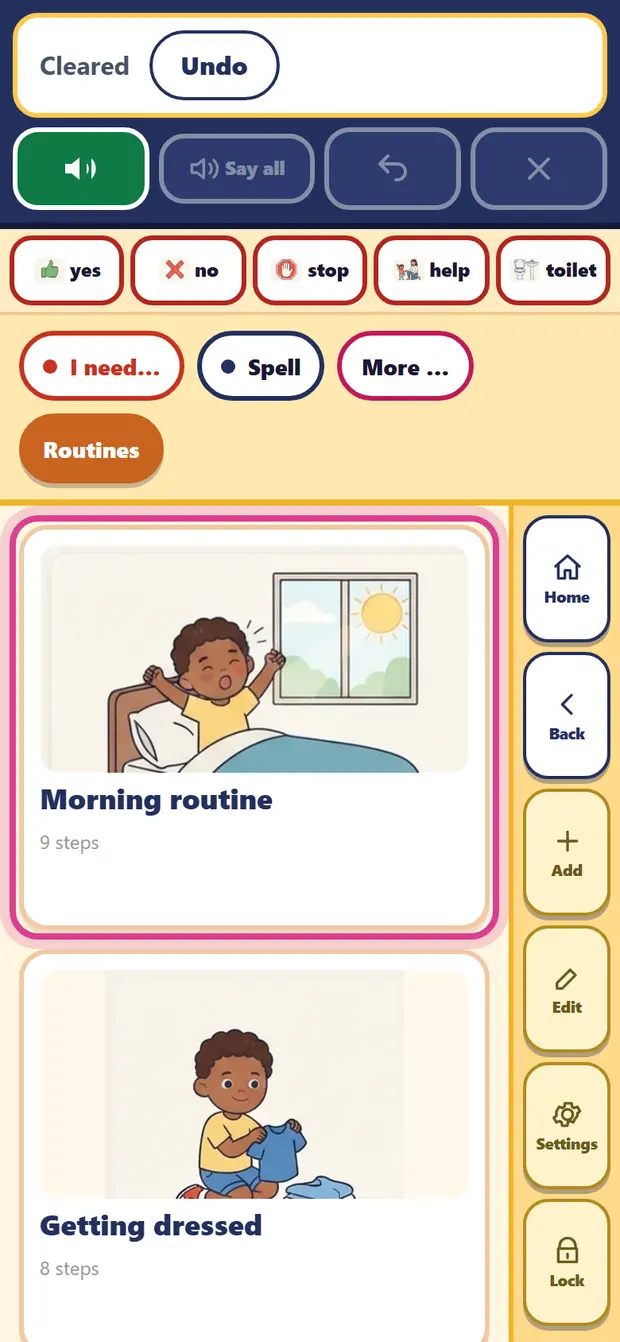
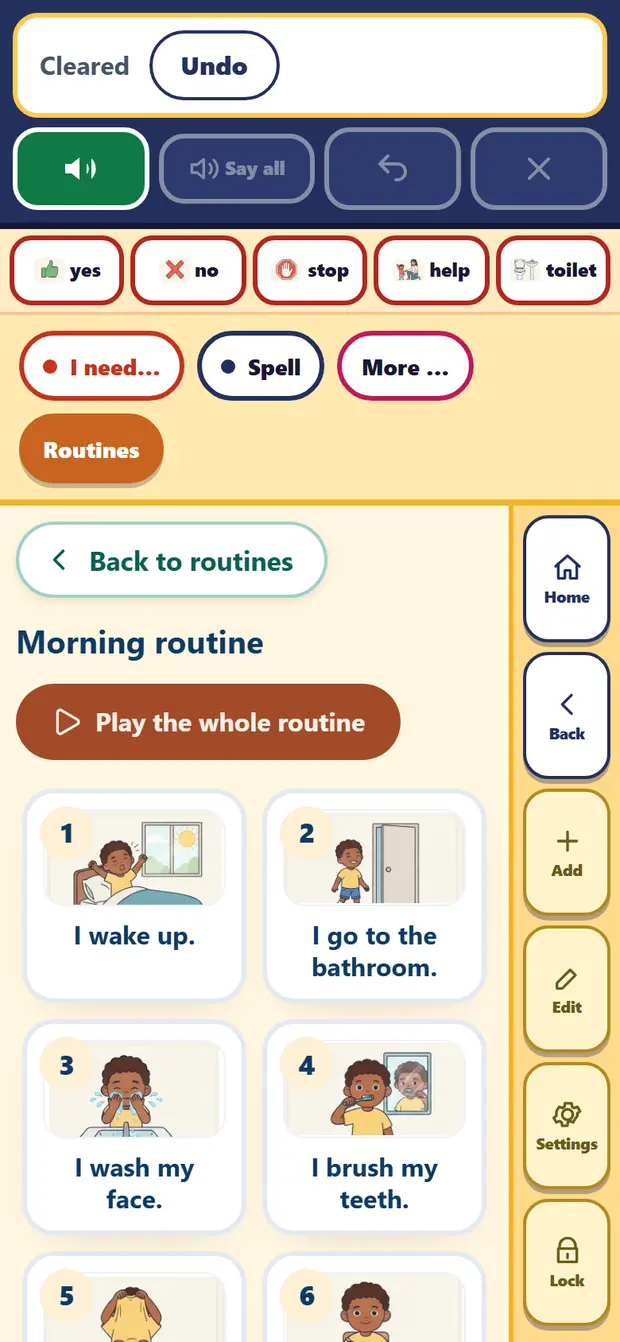
In More, “Routines” has step-by-step picture guides for daily moments: the morning, getting dressed, brushing teeth, the toilet, mealtime, bedtime, a doctor visit and more. Open one, then tap “Play the whole routine” to hear every step in order, or tap one step to hear just that step.
3. Talk Board settings
Opening Settings
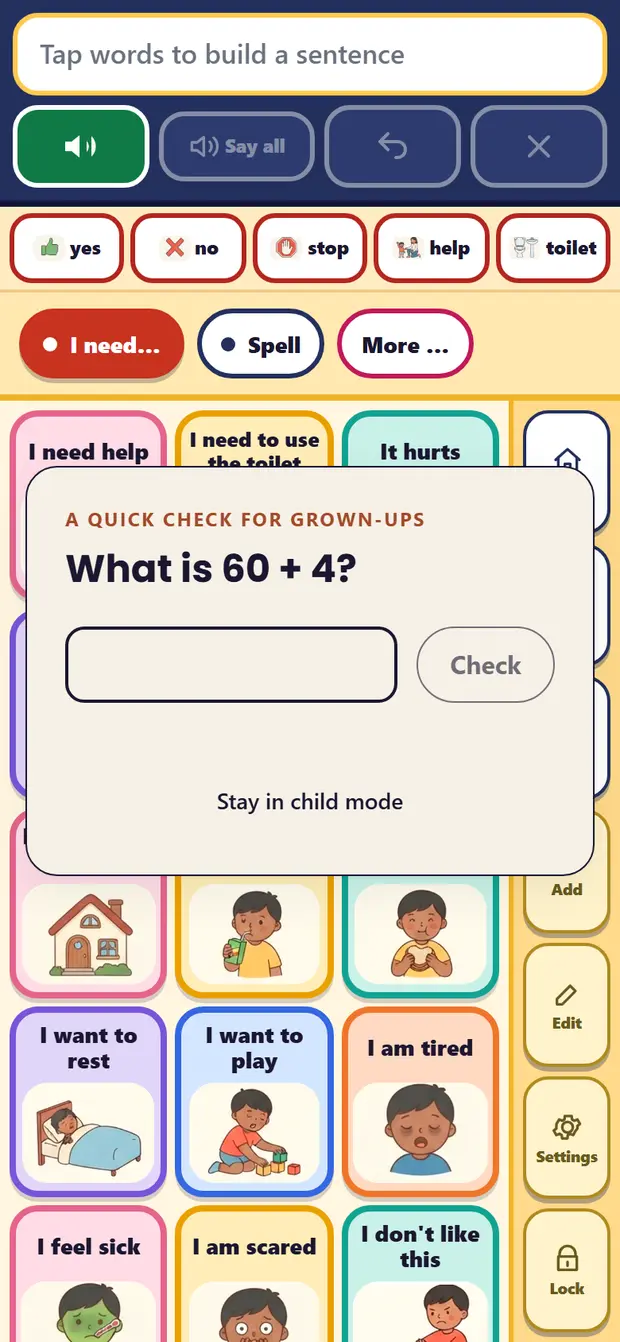
Settings, Add, Edit and Lock are on the right-hand side of the board. They first ask a small sum, “What is 20 + 3?”, so a child does not change the board by accident. Type the answer and tap Check. Everything you change is saved on this device straight away.
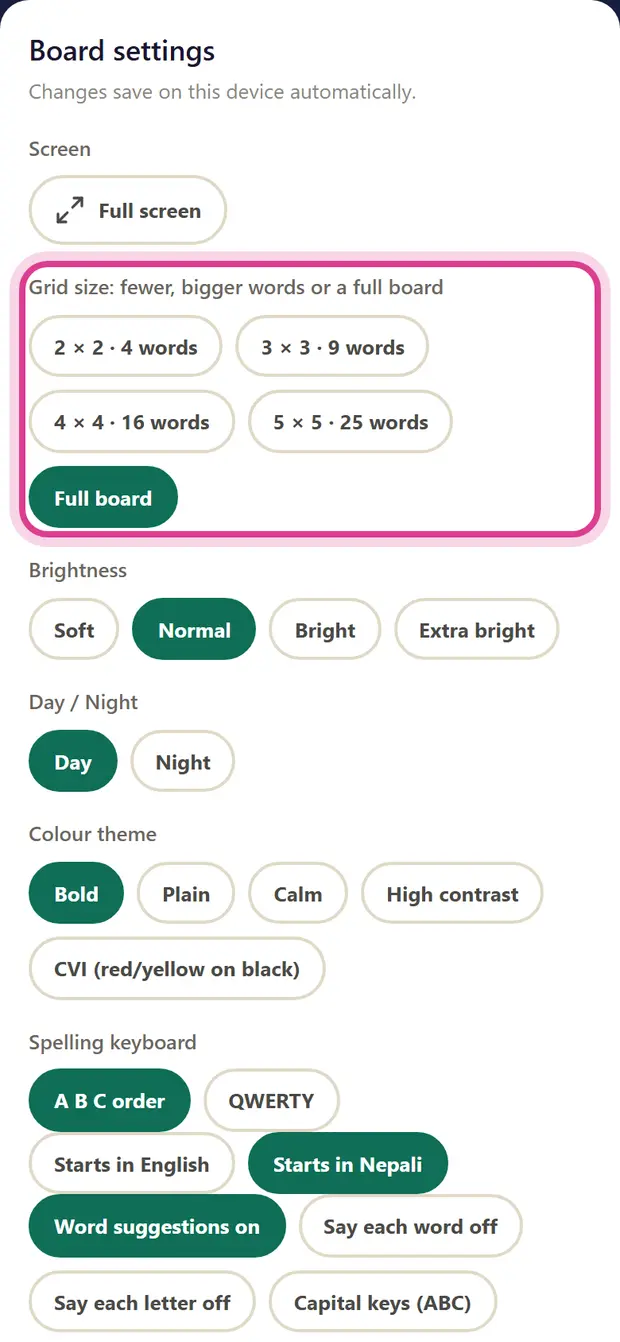
Grid size
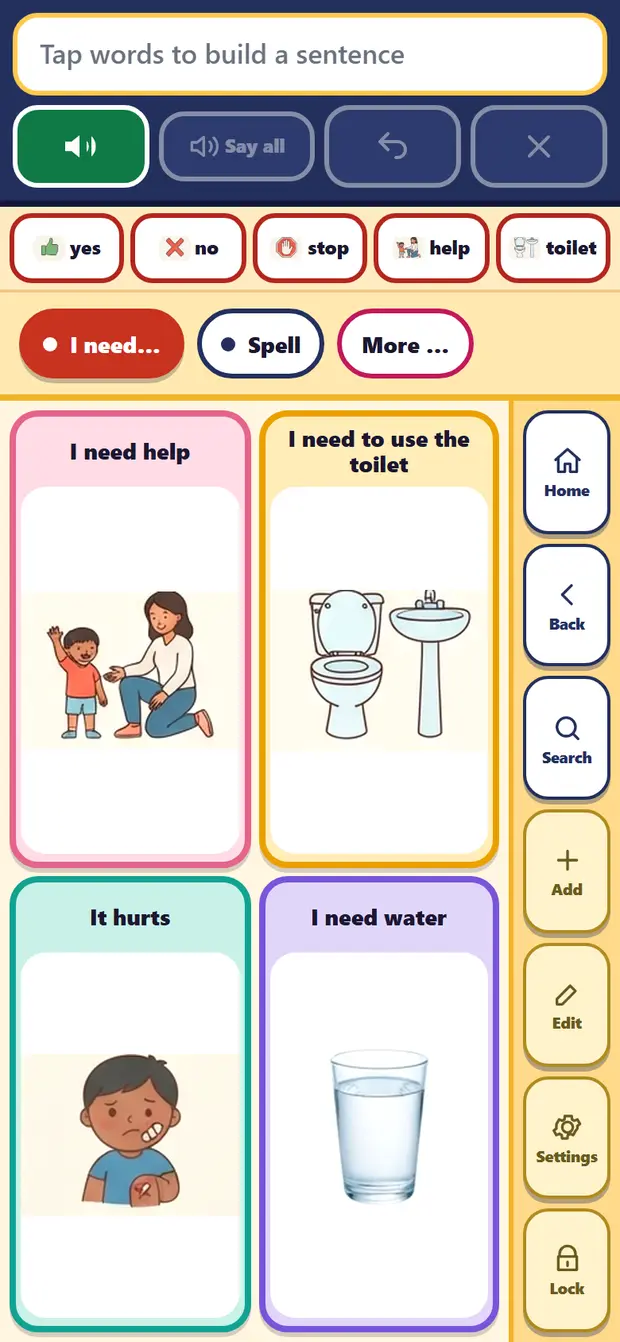
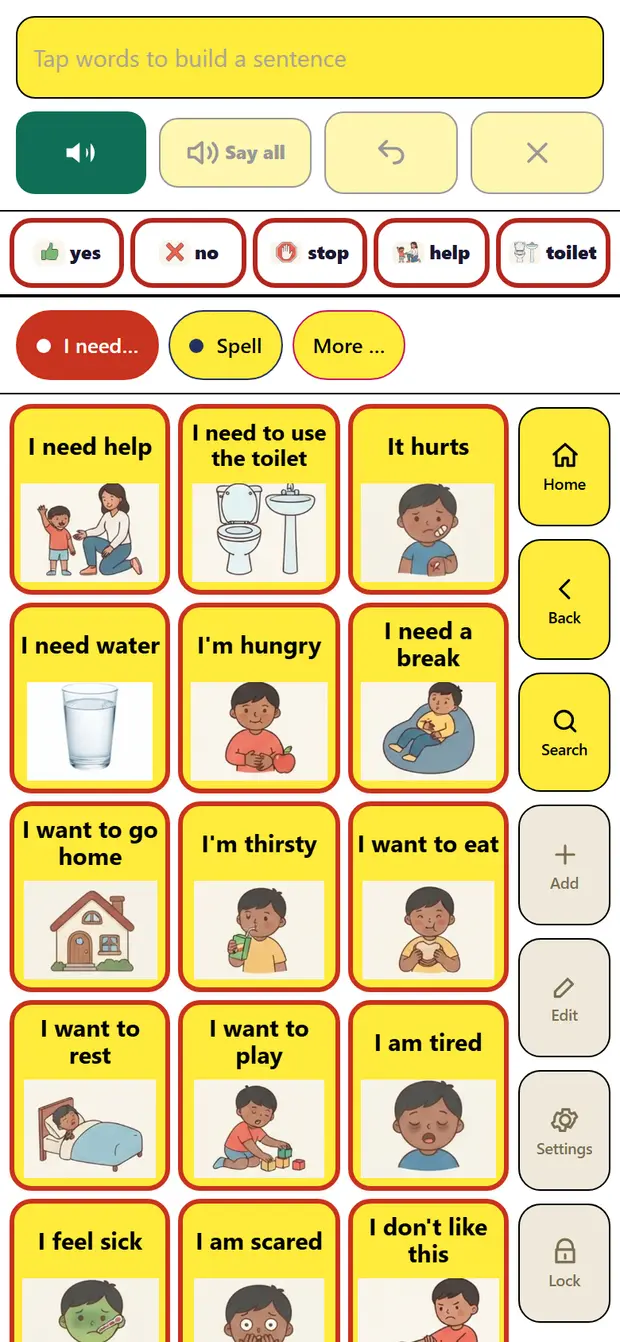
Choose how many pictures show at once: 2 × 2 (4 words), 3 × 3 (9), 4 × 4 (16), 5 × 5 (25) or the full board. Fewer, bigger pictures help a child who is just starting, or who sees small pictures less easily. You can add more as your child grows more confident.
Brightness, Day / Night and Colour theme
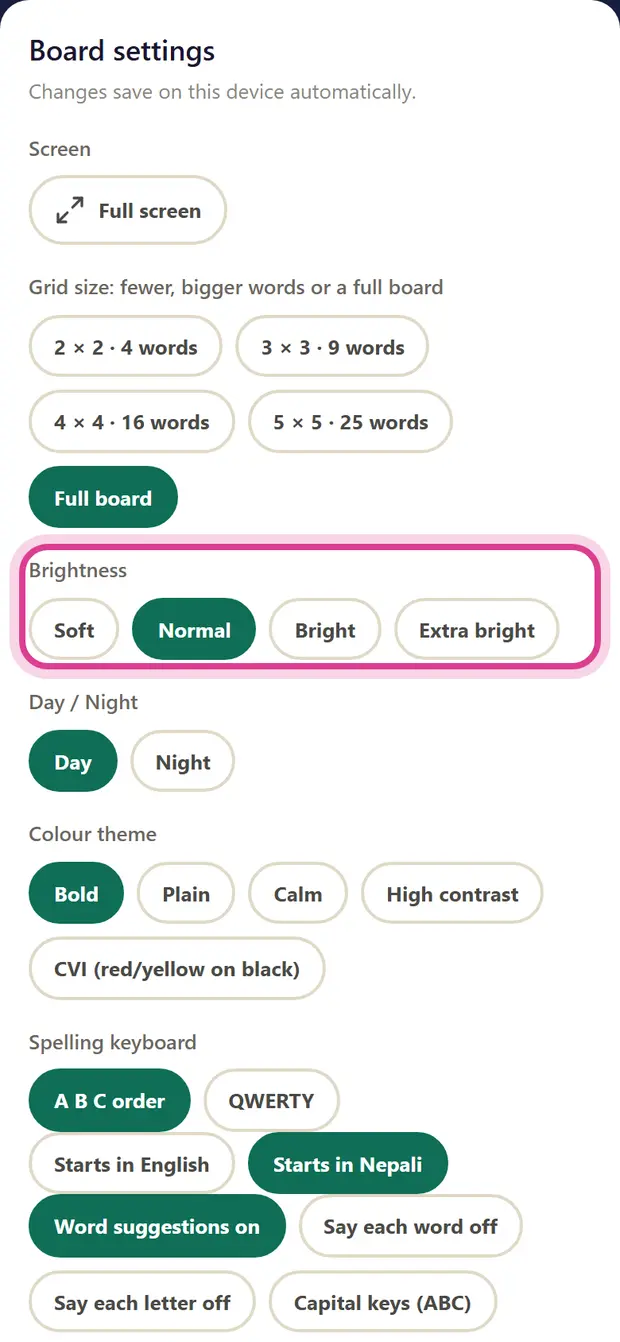
Brightness has Soft, Normal, Bright and Extra bright. Day / Night gives a darker screen for the evening. Colour theme changes the look: Bold (the usual one), Plain, Calm, High contrast, and CVI (red and yellow on black), made for children who see strong colours on black most easily. Try one for a few days and watch what your child finds easiest.
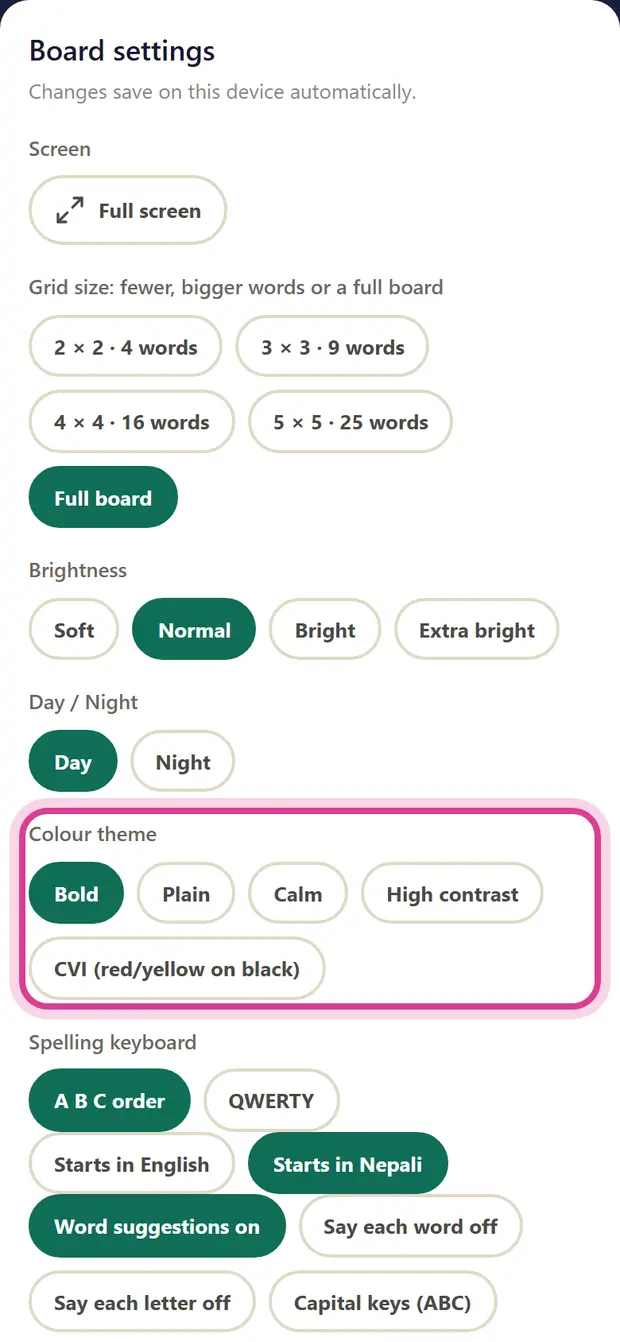
Spelling keyboard
These settings are for the Spell keyboard: A B C order or QWERTY; which letters it starts in; word suggestions; saying each word or each letter aloud; small or capital keys; and whether the keyboard stays tall, stays wide, or follows the screen. For a child whose hand moves a lot, “A key works when…”, “Hold a key for” and “Same key again after” stop extra letters from quick or repeated touches.
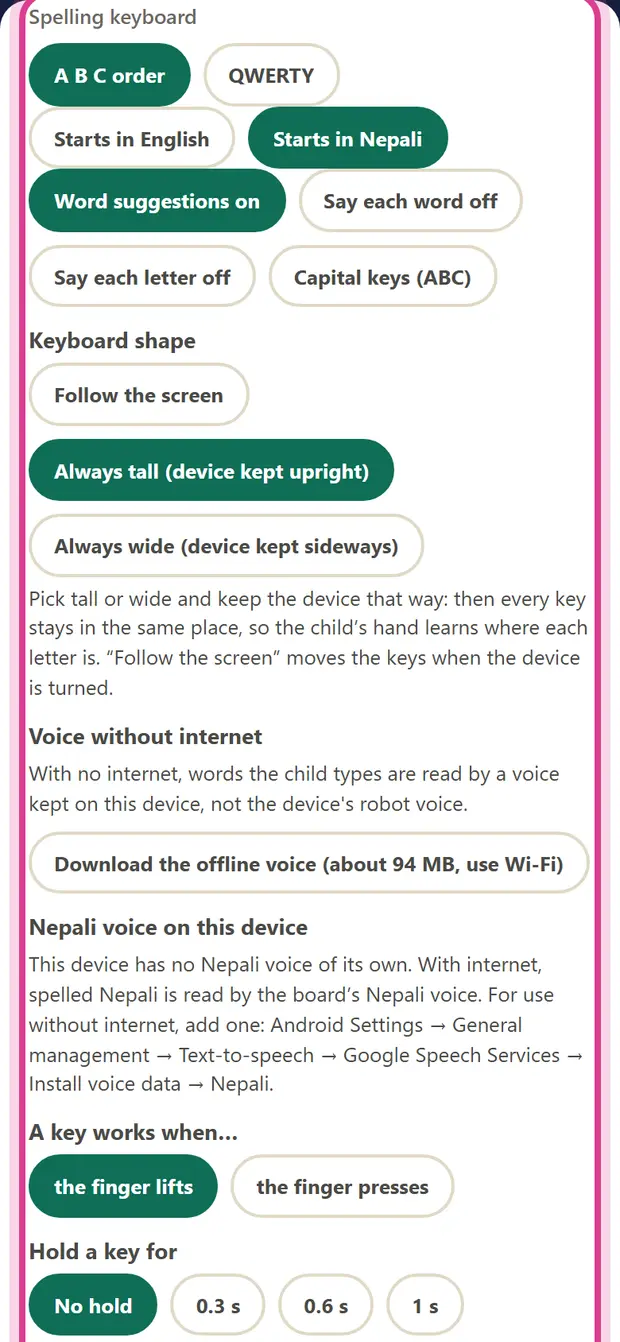
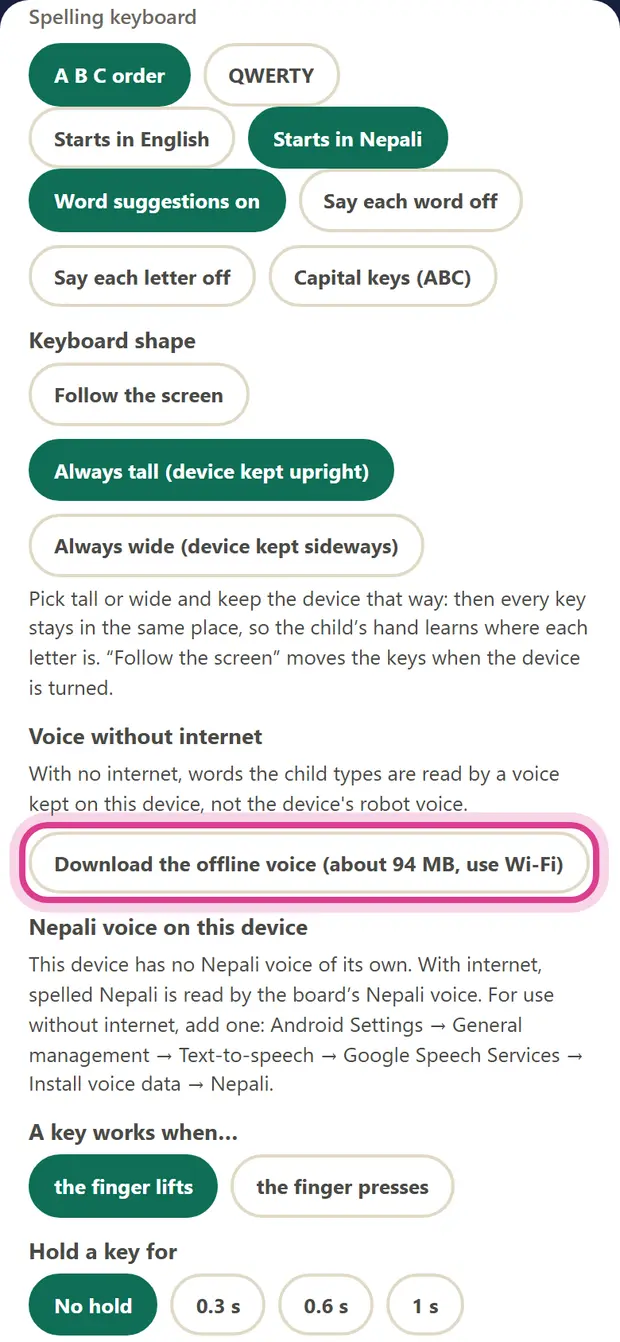
Voice without internet
With internet, BloomBridge speaks in a clear, natural voice. For times with no internet, you can download an offline voice for English, Nepali and Hindi once. It is a large download, so please use Wi-Fi. Words the board already knows keep their recorded voice even offline.
Capital letters and Word label
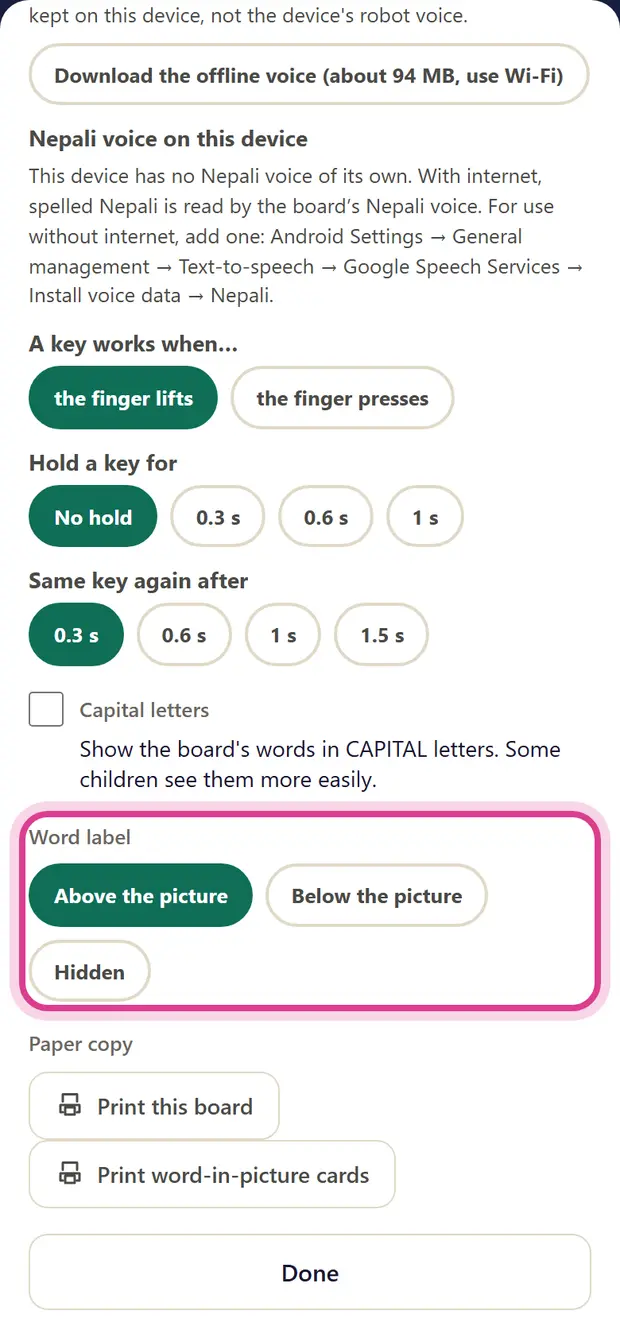
“Capital letters” (English board only) shows the words in CAPITALS, which some children read more easily. “Word label” puts the word above the picture, below it, or hides it for a child who goes by pictures alone.
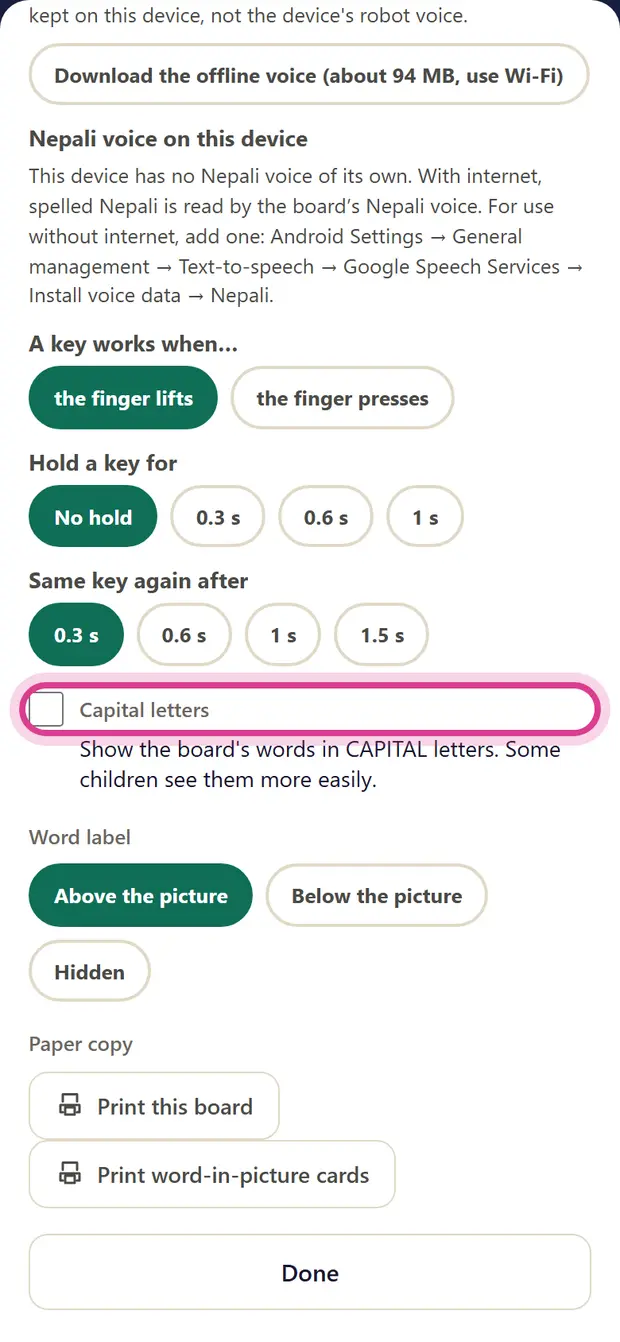
Full screen, Lock and Paper copy
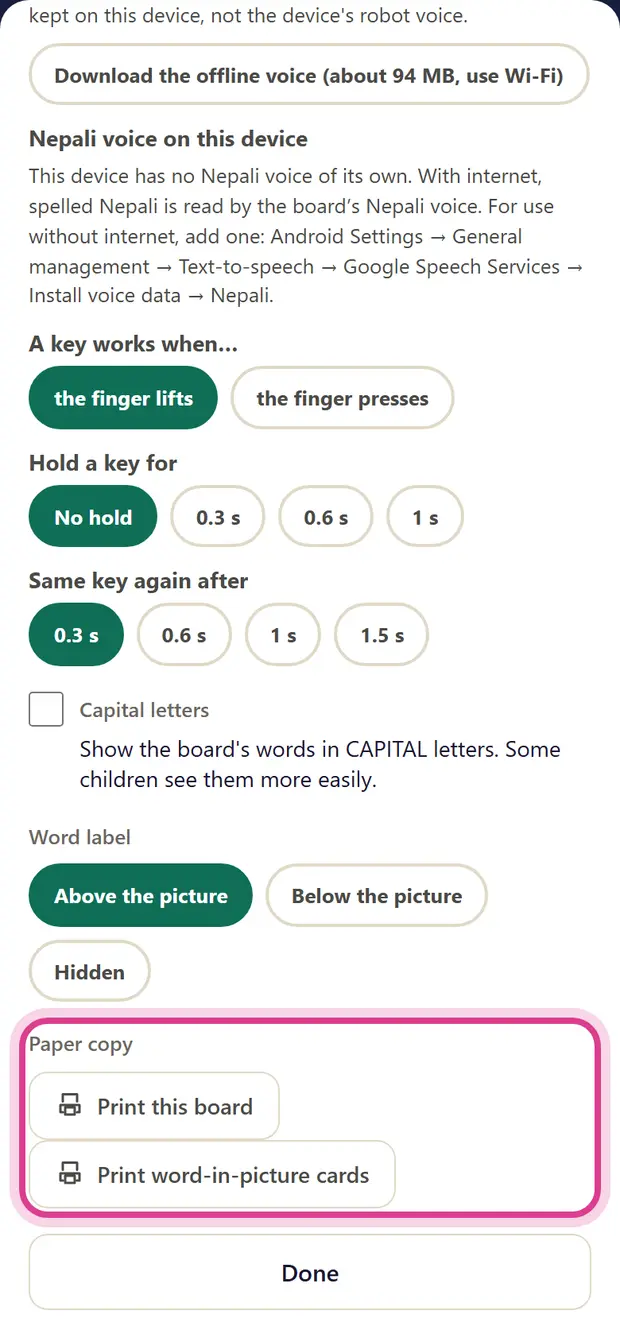
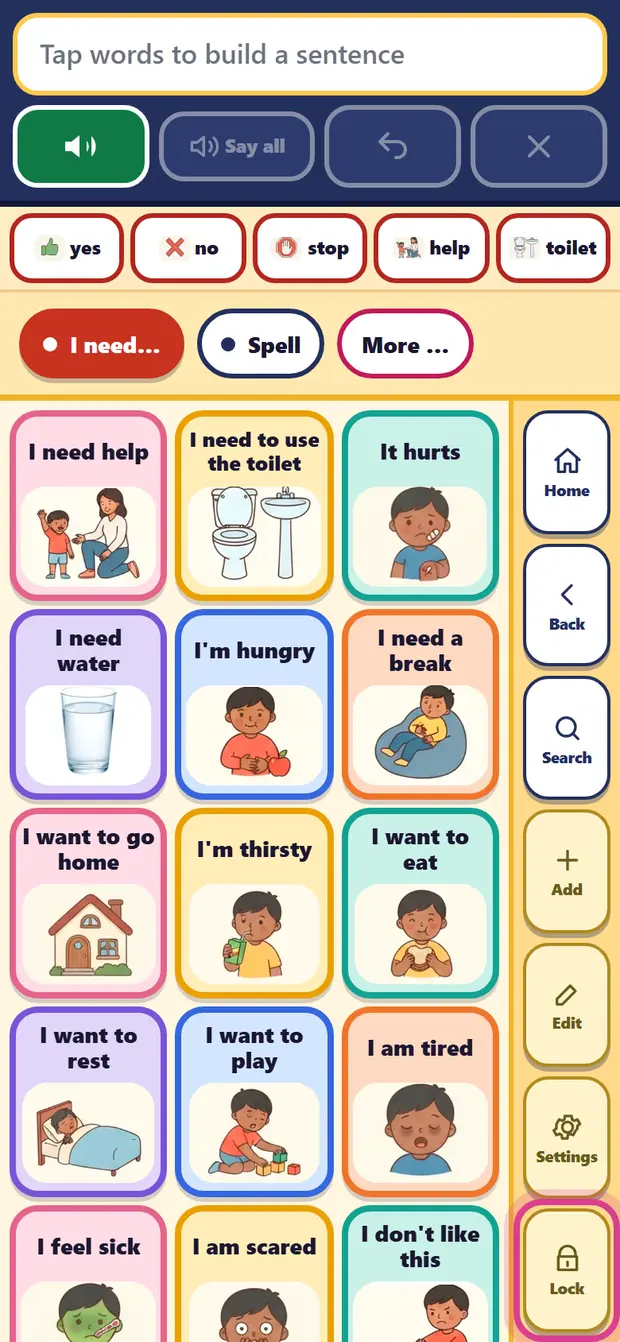
“Full screen” hides the browser bars on Android. “Lock” on the side of the board hides Add, Edit and Settings, so the board stays as you set it; unlocking asks the sum again. “Paper copy” prints the board you are looking at, or cards with the word inside each picture, for places with no phone, like the bathroom wall.
My words: add, record and hide
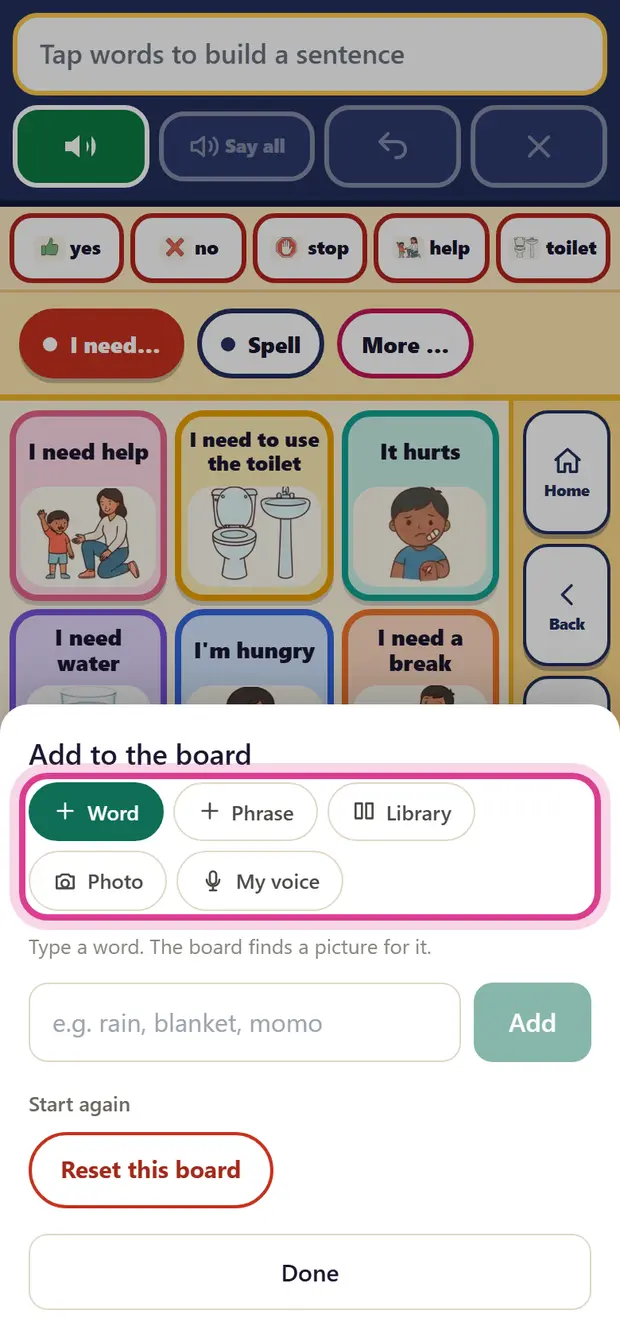
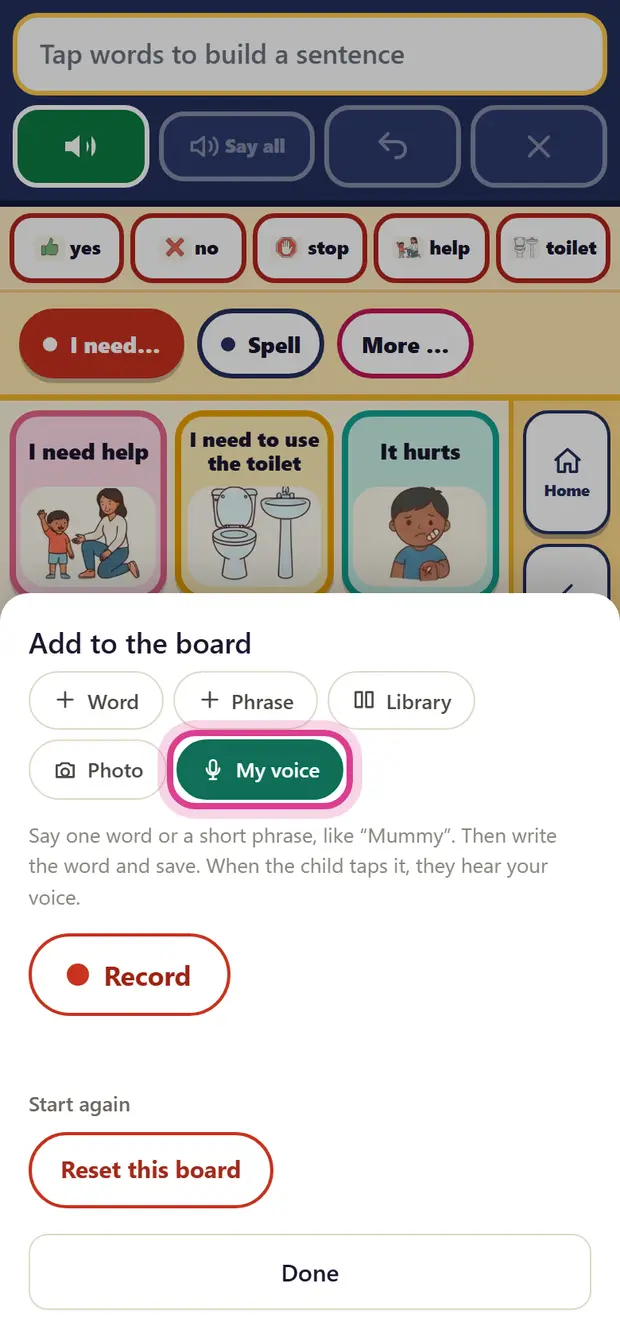
Tap Add (after the sum) to put your own words on the board. Word: type a word and the board finds a picture. Phrase: a whole sentence your child can say with one tap. Library: choose from our pictures. Photo: take a photo of something real, like your child’s own cup. My voice: record yourself saying a word, like “Mummy”, so your child hears your voice. New words appear in “My words” in More.
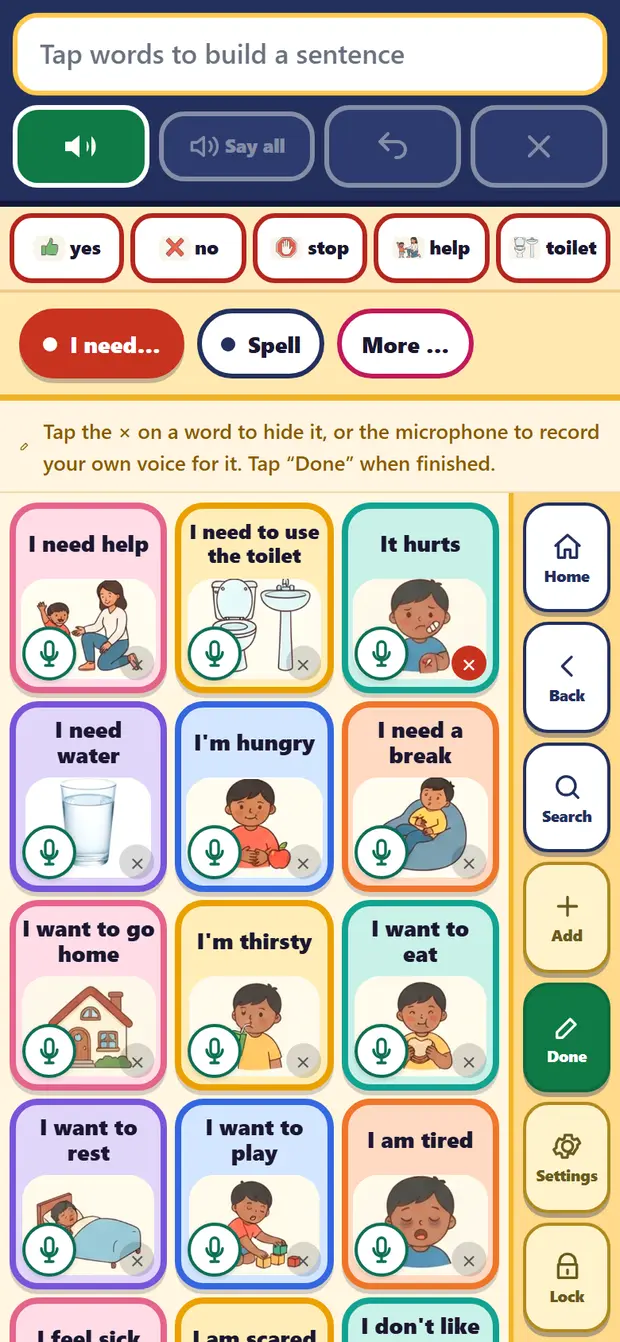
Tap Edit to change the board you see. The × on a picture hides that word (you can bring it back from Add). The microphone records your own voice for that picture. Tap Done when you are finished.
4. Spell
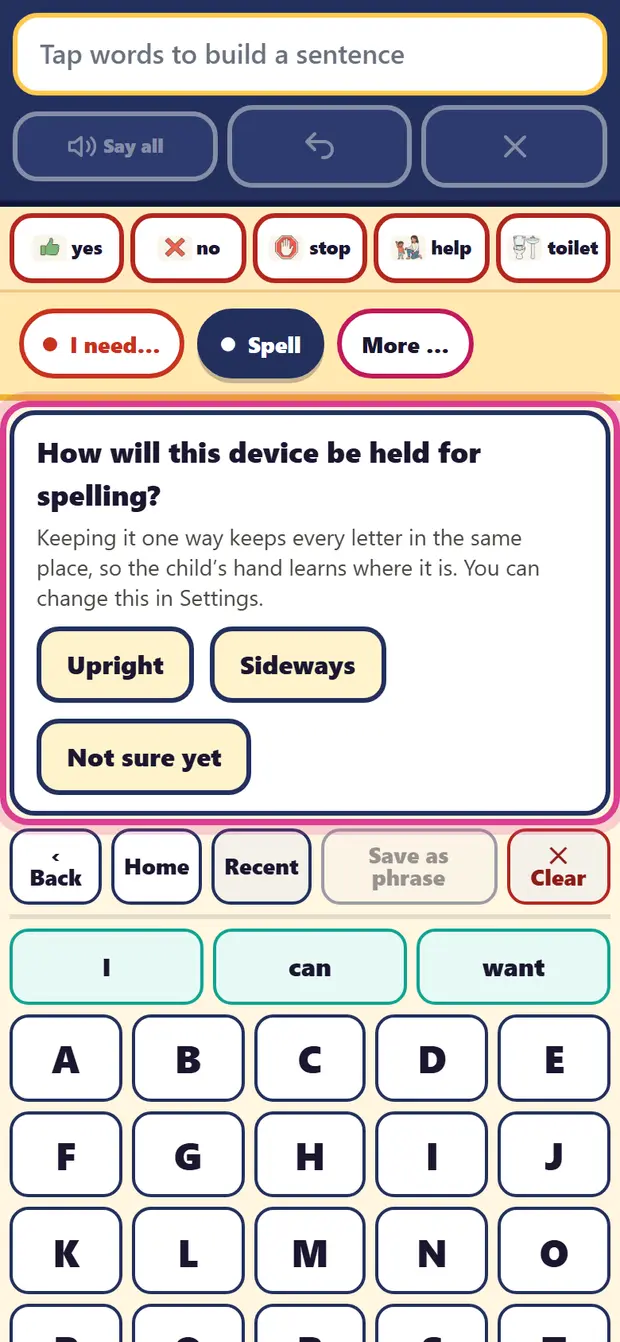
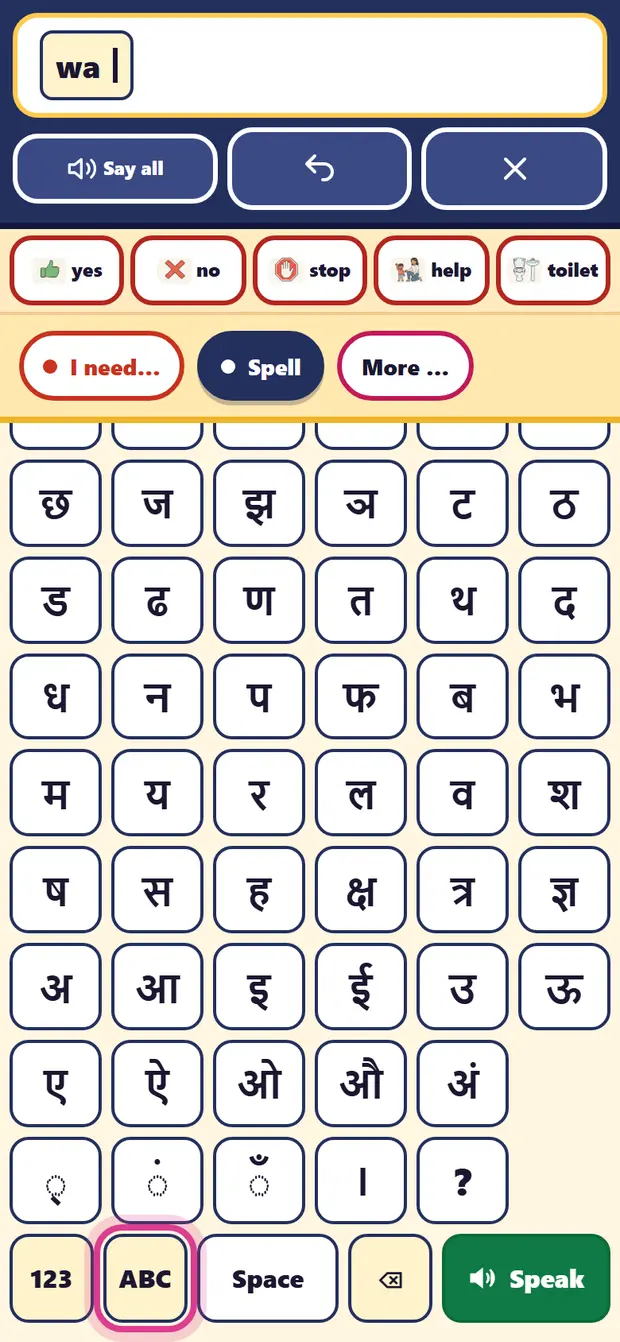
Spell is for words that are not on a picture. Tap “Spell”. The first time, it asks how the phone will be held for spelling. Keeping it one way means every letter stays in the same place, so your child’s hand learns where it is. You can change this later in Settings.
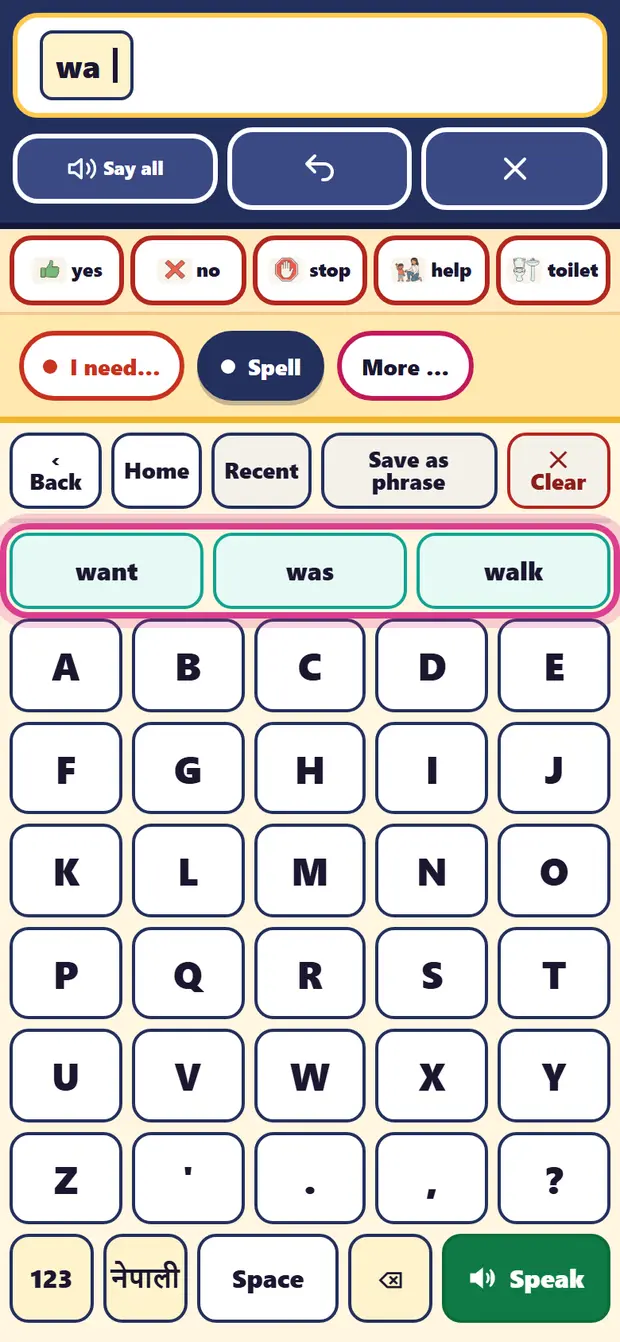
- Tap letters to type. Word suggestions appear above the keys; tap one to use it.
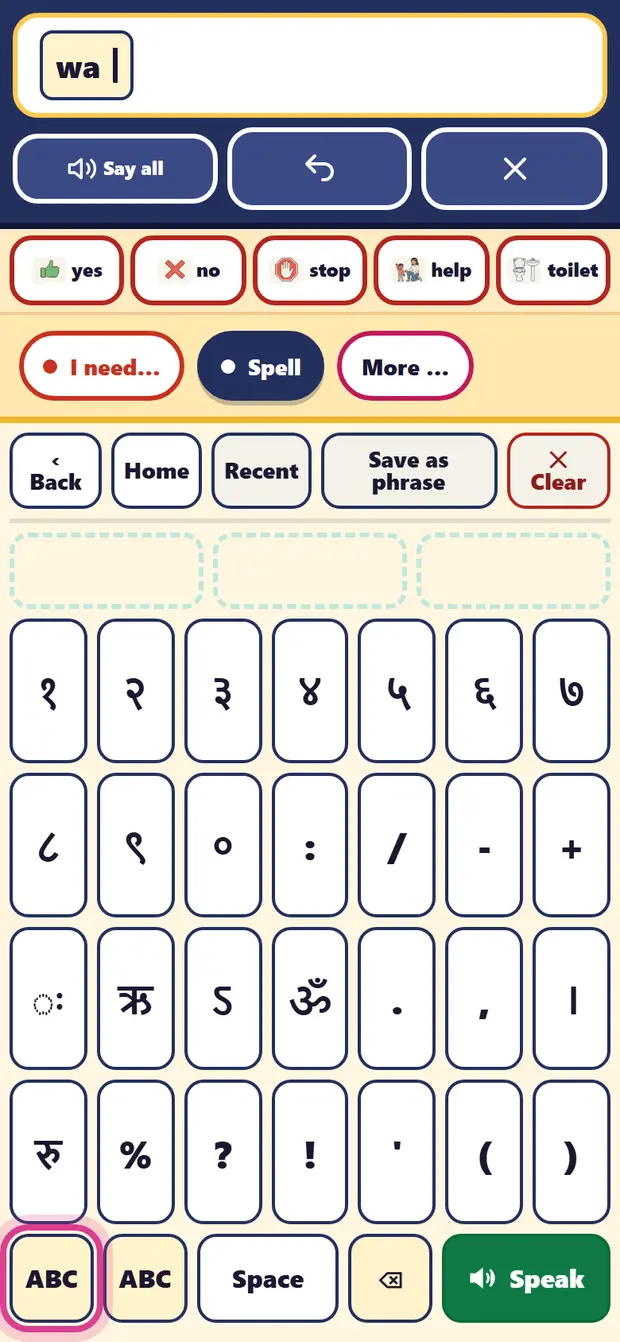
- The “नेपाली” key changes to the Nepali keyboard, and “ABC” changes back.
- “123” shows numbers and marks.
- “Speak” says what was typed.
5. Changing the language
On the trial home, the row of languages under the hours left changes the whole app: English, नेपाली or हिन्दी. Tap one and the board, the buttons and the voice change with it. Your words and settings stay.
6. Moving around
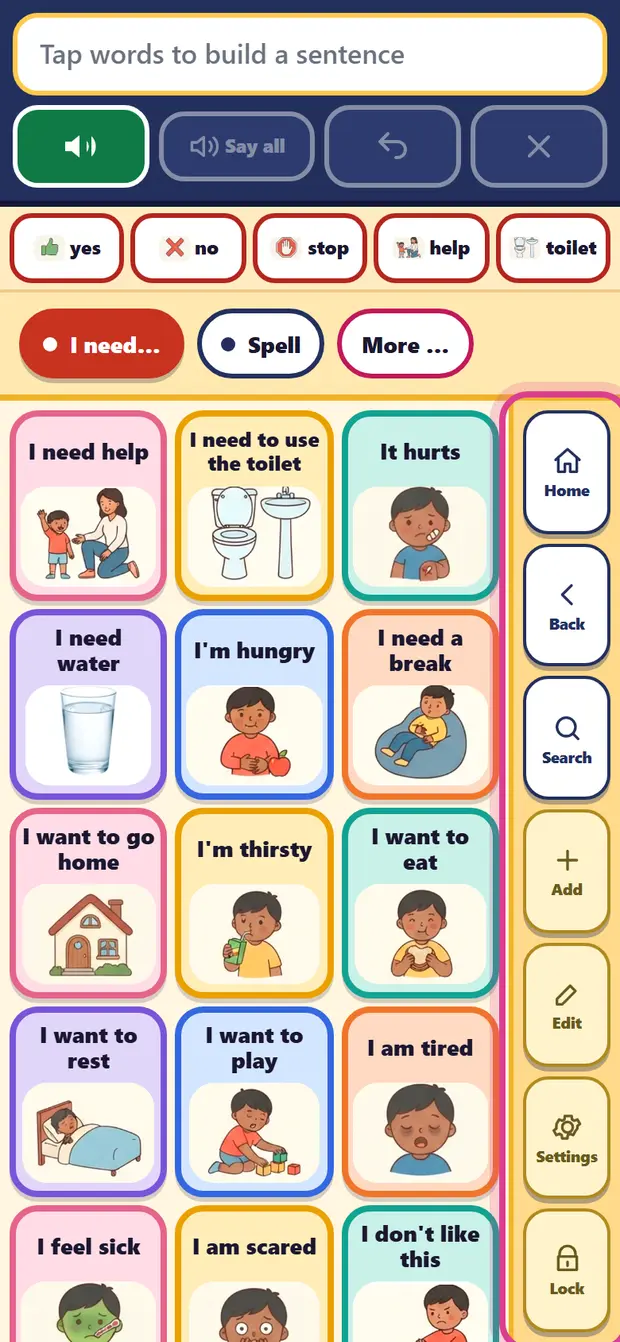
On the right of the board, Home goes back to the start of the app and Back goes back one step. Search finds a word. In Activities and stories, the button at the top left goes back one step. You never need the phone’s own back button.
Turn the phone sideways to see more pictures at once
Held upright, the pictures are big and easy to tap. Turned sideways, the board spreads out like a laptop board and shows more pictures at once. Use whichever suits your child. Nothing needs to be set.
7. Using it with your child
BloomBridge works best as something you do together, in ordinary moments. Here are a few things families find helpful.
- Start with a few words that matter today: water, toilet, help, stop. You can add more later.
- Show, don’t ask. When you say “water”, tap “water” yourself. Your child learns by seeing you use it, the way they learn any language.
- Use real moments: meals, getting ready, going out, bath and bedtime. A word used when it is needed means much more than a word practised.
- Wait. After you offer the board, give your child time. Count slowly to ten in your head before you help.
- Welcome every way your child communicates: a look, a sound, a point, a picture or a word. All of it counts.
- It is a voice for your child, not a test. There are no wrong taps. If your child taps many pictures just to hear them, they are exploring, and that is how they learn.
BloomBridge supports your child at home. It is not a diagnosis or a therapy, and it does not replace the people who work with your child.
8. Activities
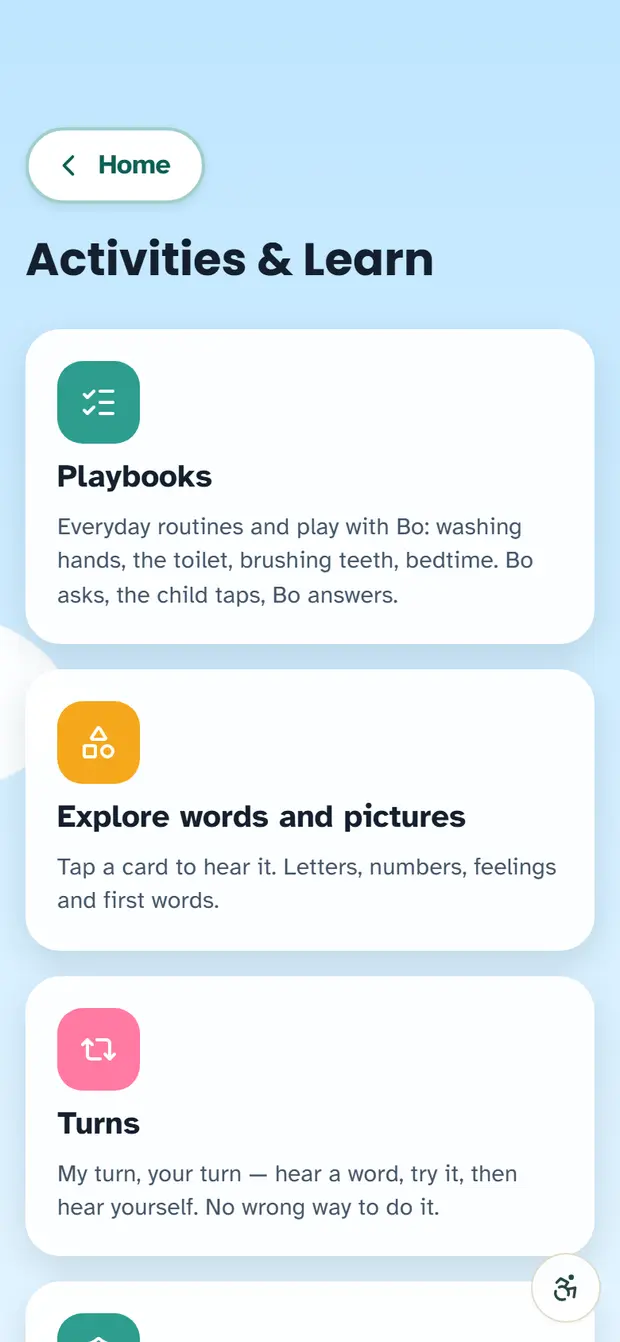
Activities has short, calm games to play together. Each one has a back button at the top.
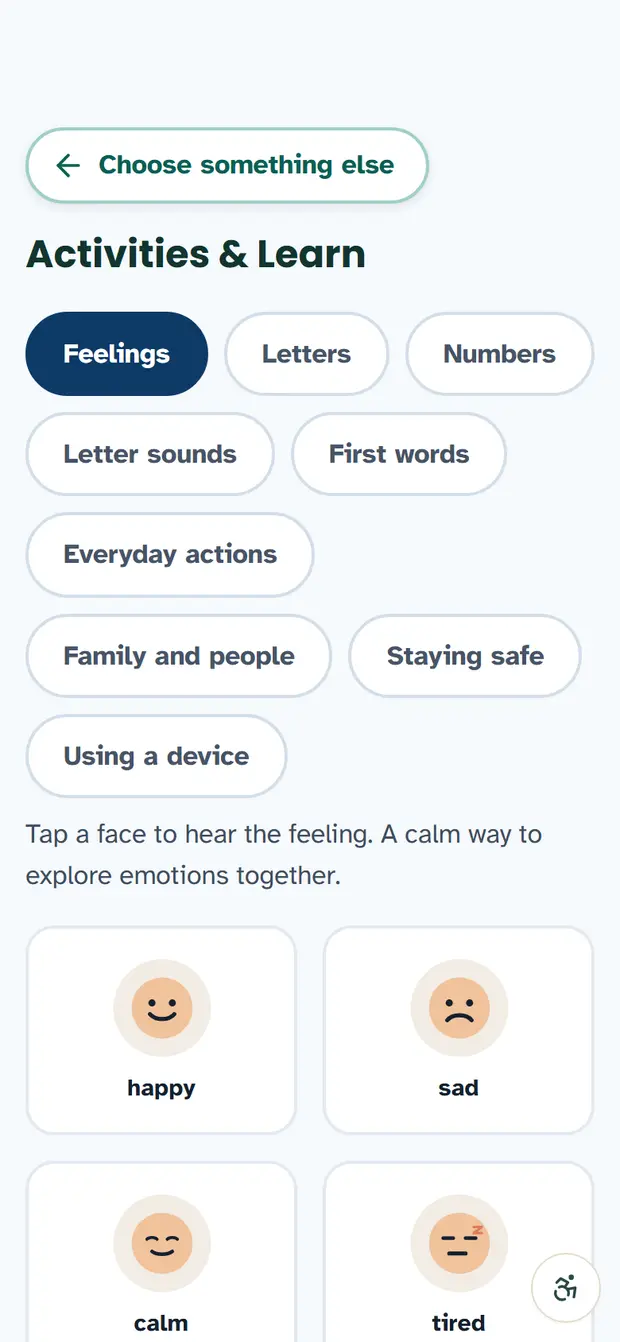
- Explore words and pictures: tap a card to hear it. Letters, numbers, feelings and first words.
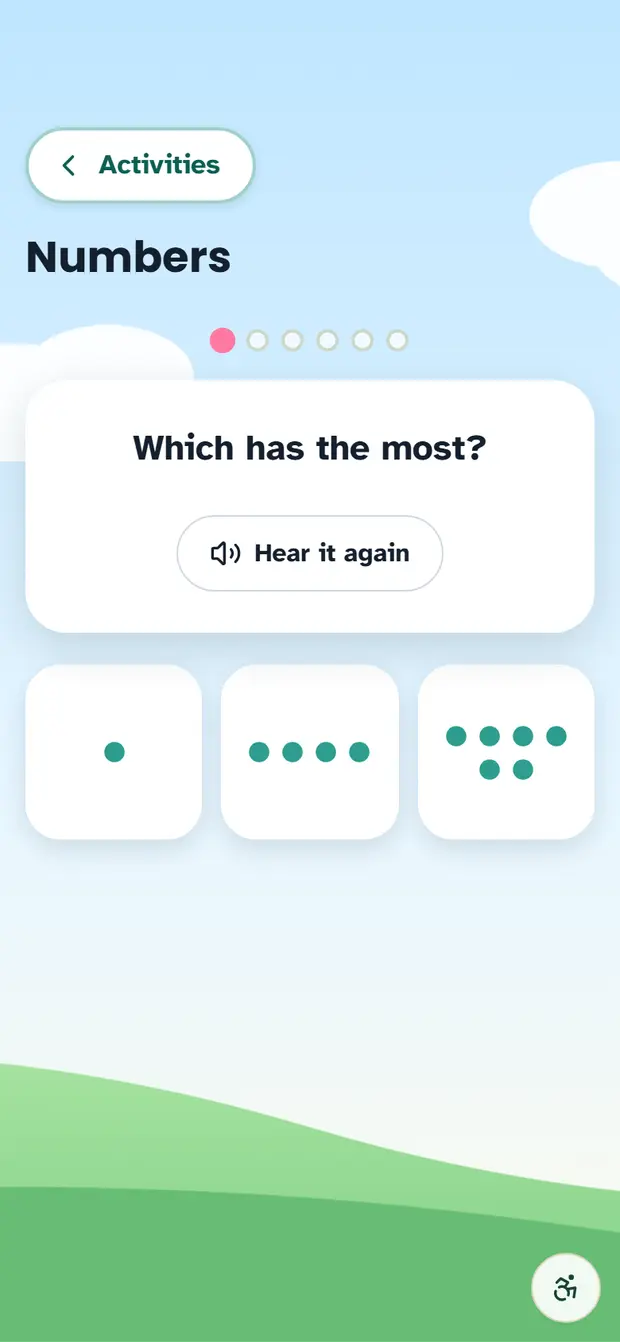
- Numbers: count and add, then tap the right answer.
- Playbooks: everyday routines with Bo, like washing hands and bedtime. Bo asks, your child taps, Bo answers.
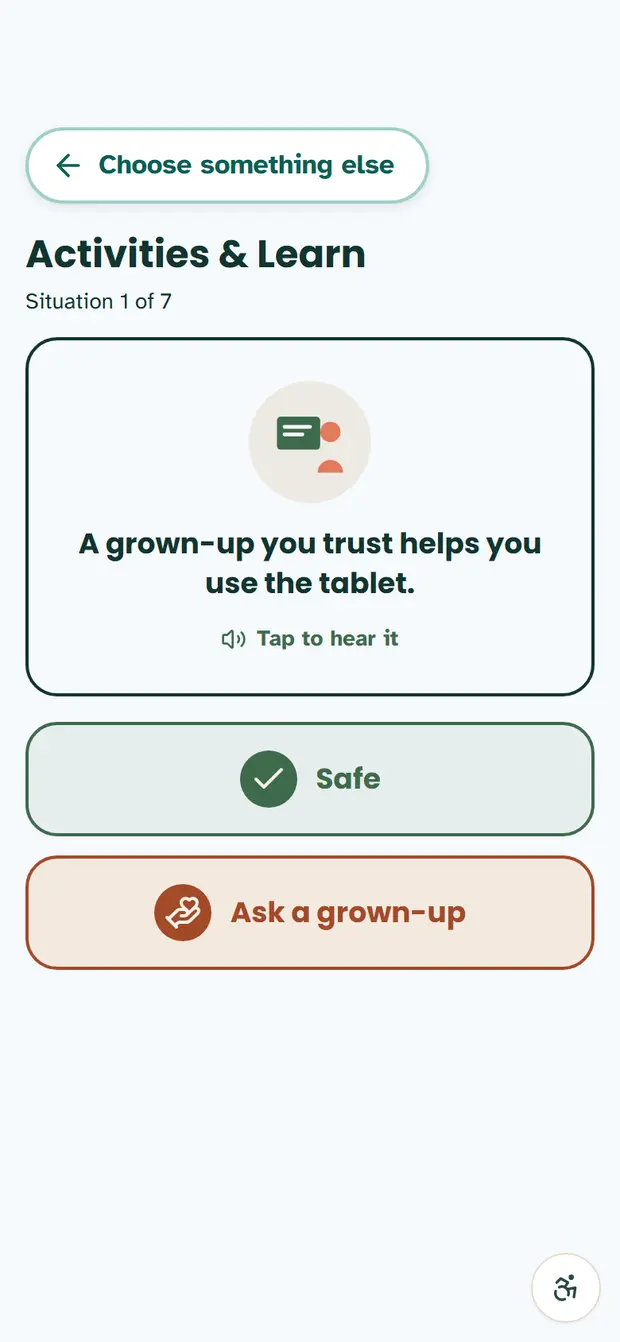
- Safe, or ask a grown-up?: hear a situation and choose.
- Turns: my turn, your turn. Hear a word, try it, then hear yourself.
Read together
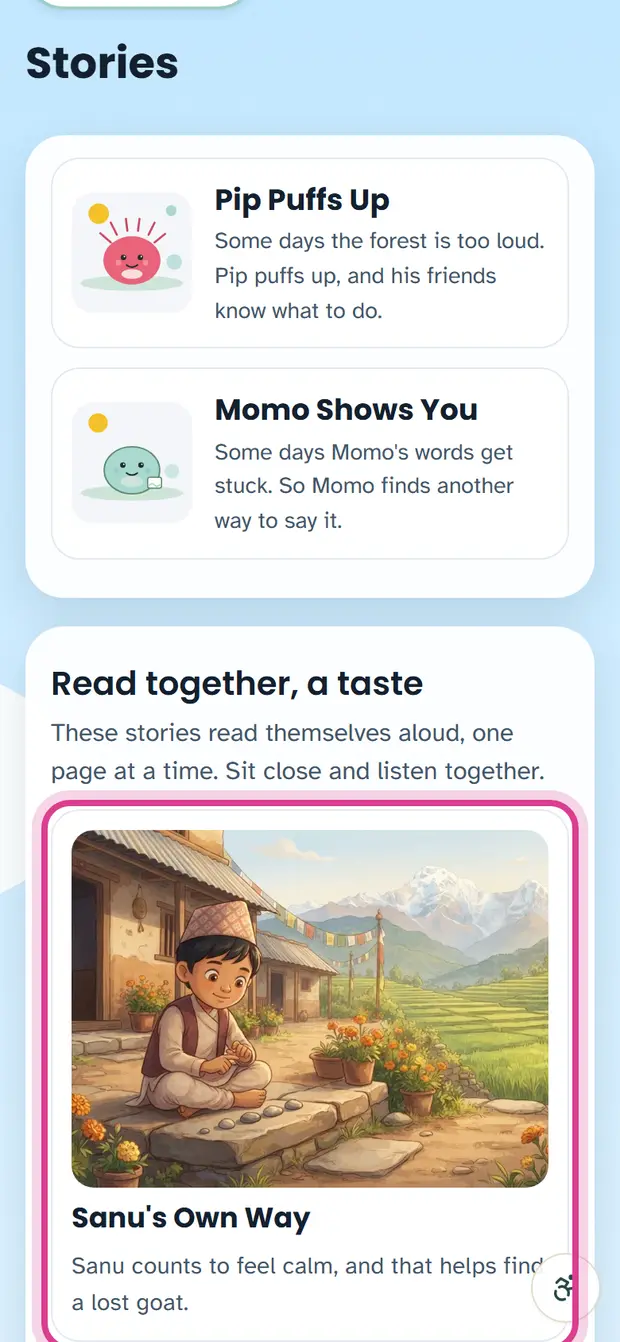
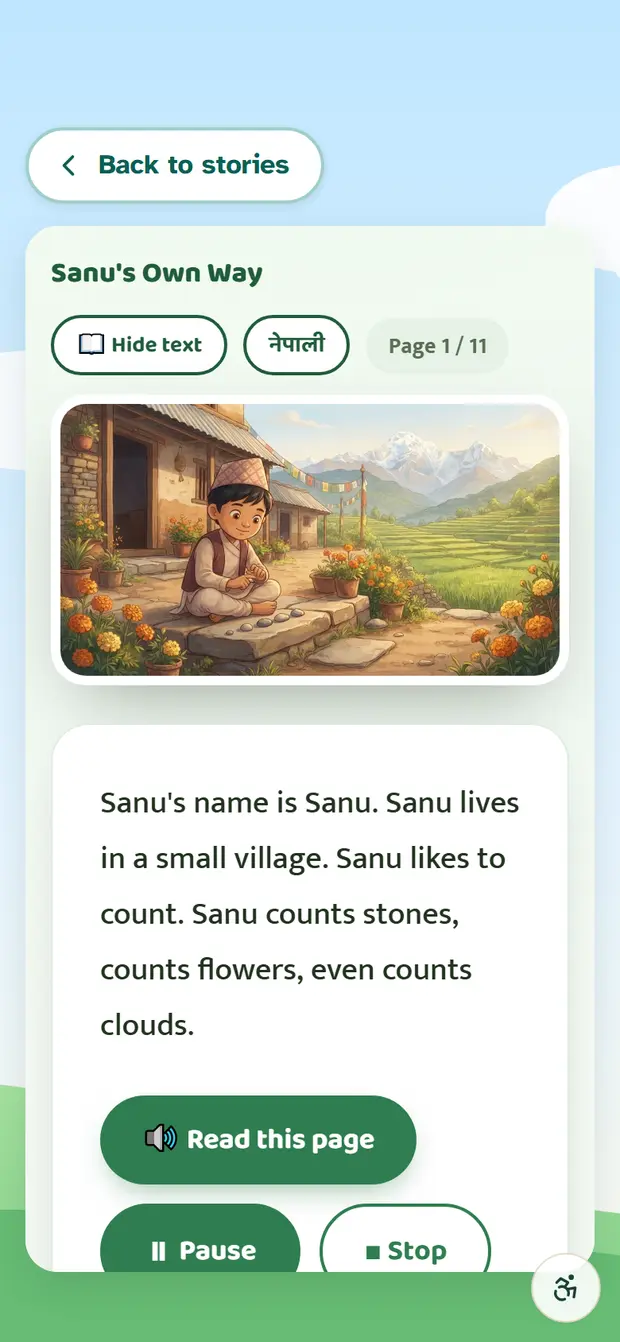
In Stories, some books read themselves aloud, one page at a time. Open a story and tap “Read it to me” to hear the whole story. While it reads, Pause stops for a moment and the same button carries on; Stop ends the reading. You can also turn the pages yourself. The trial has a few stories; the family pack has many more.
9. Keeping your child inside BloomBridge
Children tap everything. These steps help BloomBridge open like an app and stop a child from leaving it by accident.
A BloomBridge app for Android is on its way to the Play Store. When it is ready, you will be able to download it directly. Until then, these steps make BloomBridge open and feel like an app.
Android phone or tablet
- Make it feel like an app: open family.getbloombridge.org in Chrome, tap the ⋮ menu at the top right, then “Add to Home screen” (on some phones, “Install app”). From now on, open BloomBridge from its icon on your home screen.
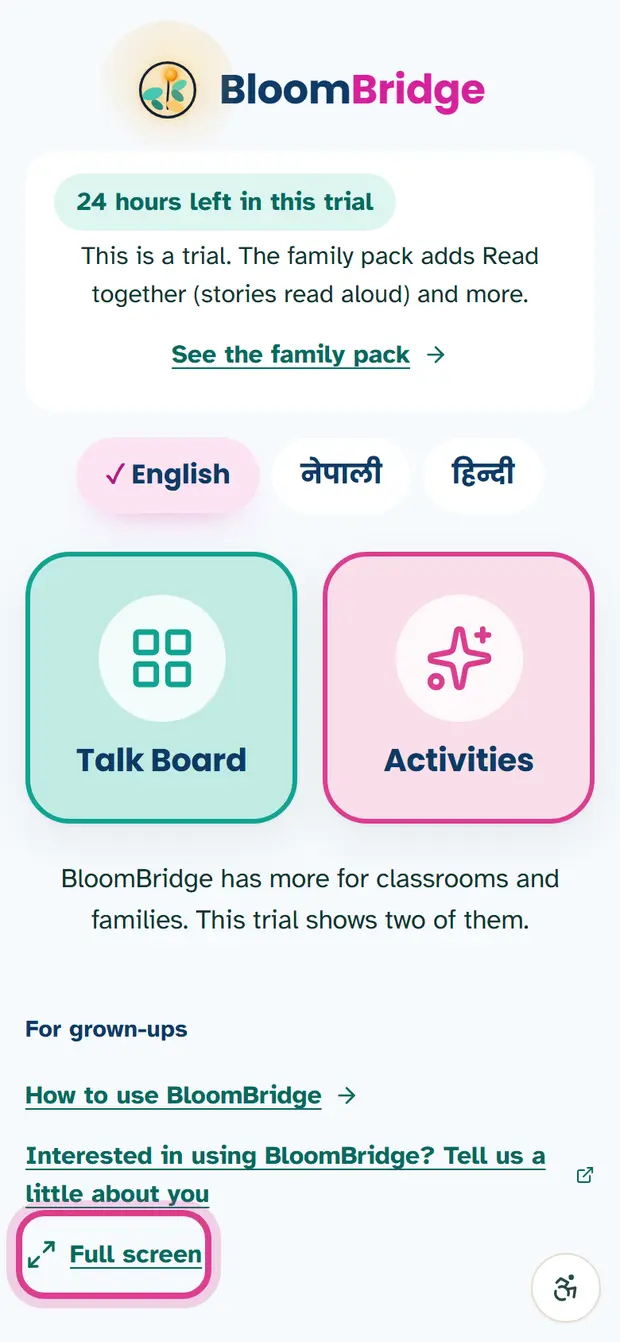
- Full screen: on the trial home, or in the board’s Settings, tap “Full screen” to hide the browser bars.
- Strongest: App pinning (also called Screen pinning). Turn it on in the phone’s Settings, usually under Security or Privacy → App pinning. Then open BloomBridge, open the recent apps view, tap the app’s icon and choose Pin. The phone stays on BloomBridge until a grown-up unpins it. The exact menu names change from phone to phone, so if you do not see them, search Settings for “pin”.
iPhone or iPad
- Make it feel like an app: open family.getbloombridge.org in Safari, tap the Share button (the square with an arrow up), then “Add to Home Screen”. From now on, open BloomBridge from its icon.
- Strongest: Guided Access, which is built into every iPhone and iPad, with nothing to download. Turn it on in Settings → Accessibility → Guided Access and set a passcode. Open BloomBridge, then triple-click the side button (or the home button) and tap Start. To end it, triple-click again and enter your passcode.
Optional: a kiosk browser (Android)
A kiosk browser is an app that opens only one website. Fully Kiosk Browser, from the Play Store, is one example. Set its start address to family.getbloombridge.org, and the tablet opens straight to BloomBridge and stays there. This suits a tablet kept only for your child.
10. The family pack
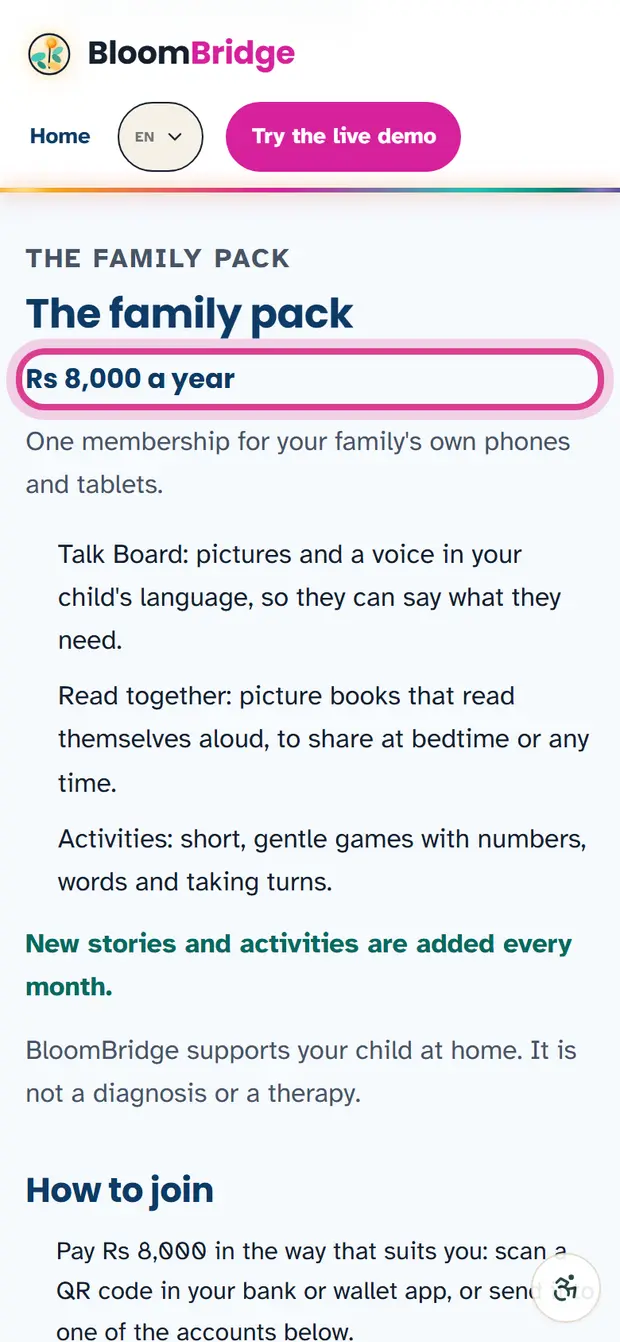
When the trial ends, the family pack keeps BloomBridge on your family’s phones and tablets for a year.
- The Talk Board, in your child’s language.
- Read together: picture books that read themselves aloud.
- Activities: short games with numbers, words and taking turns.
- New stories and activities every month.
How to join
- The family pack is Rs 8,000 a year. Pay by eSewa (the details are on the For families page).
- Then fill in the short form on the same page.
- Within about an hour, you receive an email with your family code.
- Open family.getbloombridge.org/families/start on your child’s phone and enter the code once. After that, BloomBridge opens straight away.
If the cost is hard for your family, please write to us. We would rather talk than have a child go without.
11. Help
If something does not work, or you are not sure what to do next, please get in touch. A real person answers.
- WhatsApp: +1 443 824 7766
- Email: khadkasulav09@gmail.com
BloomBridge family guide · family.getbloombridge.org